
Ajutor › Builder (Design and Pages)
Connect to CMS Database
Table of contents
Getting Started
After adding a CMS Row with the column, you will be required to connect to the CMS database to activate that section. This article will show
Connect to Database
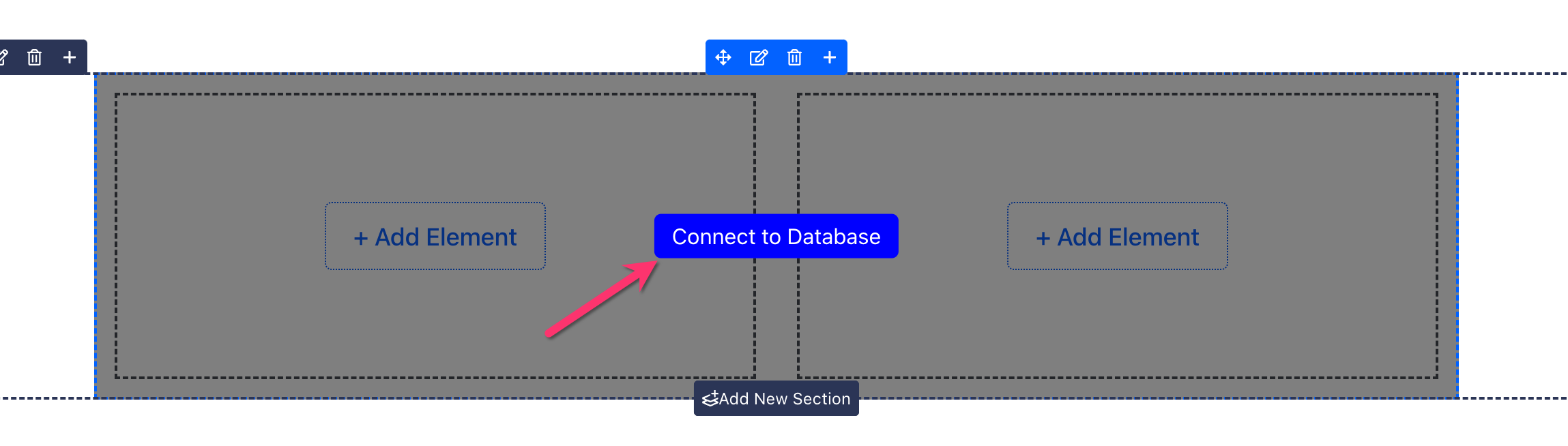
To connect your section with a CMS Database and use the CMS features, click on Connect to Database.
⬇️ After clicking, you will see the CMS Row editor, where you will find several options to configure your CMS row.
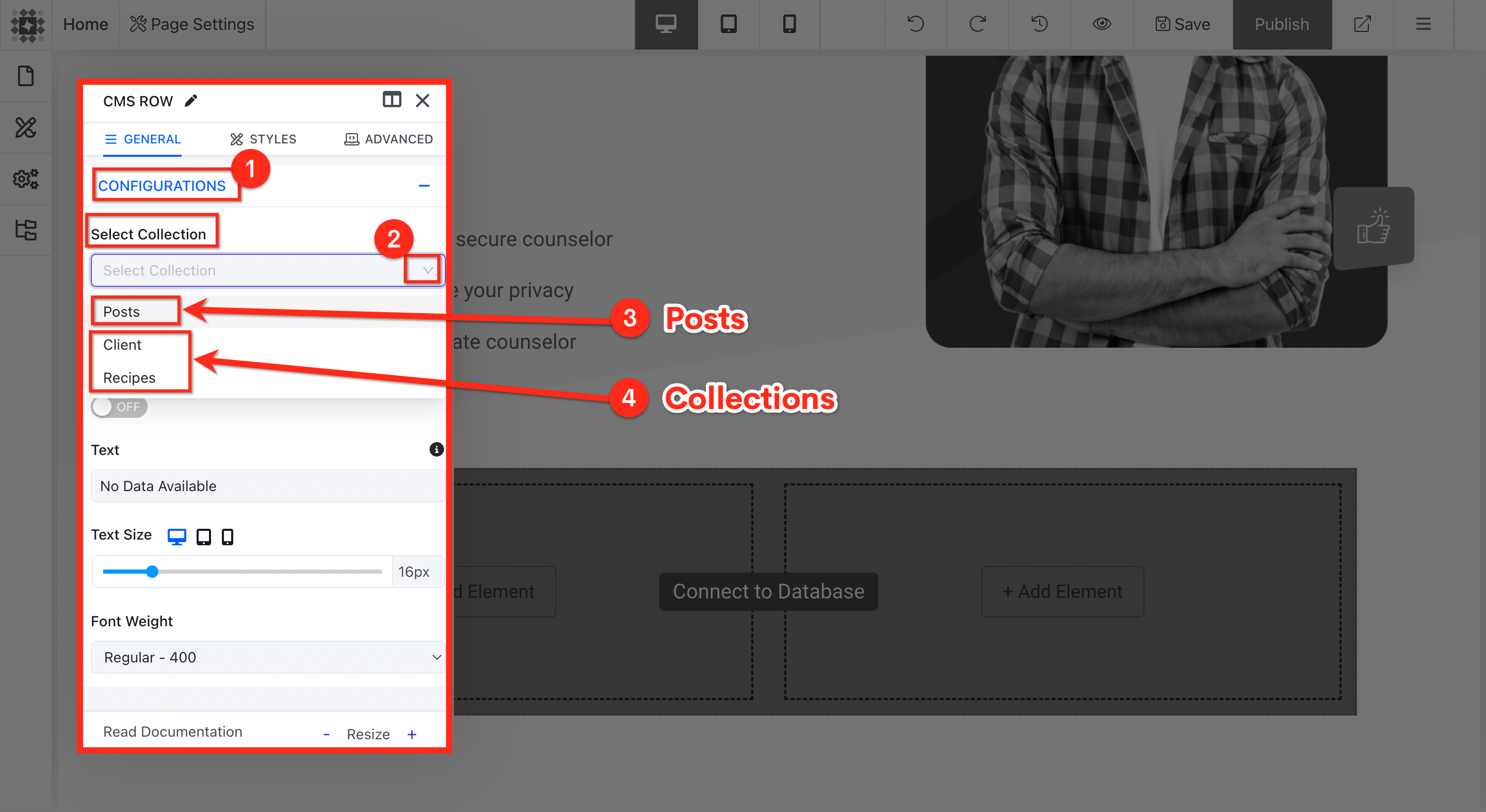
Refer to the list below and the numbers on the picture ☝️ 👇
- Configurations: This lets you select the Posts or a Collection (only if your data source is from a custom collection list).
- Select Collection: This lets you select whether you want the data to be a blog post or a custom collection list.
- Posts: If you want to show posts, then click here.
- Collections: If you want to display any custom collection, then you can proceed to select the collections you have added and click on that from here.
Related articles
Populating elements with CMS content CMS Row with columnAi nevoie de ajutor? Scrie-ne.