
Ajutor › Builder (Design and Pages)
Builder Basics
Table of Contents
Getting Started
The CMS website builder is a tool that you would use in CMS to customize the user end of your website. Many useful features in the builder let you create the websites you have always wanted. The drag-and-drop features, website elements, integrations, etc., are all powerful tools in the website builder.
Builder Basics
When you click on Design and Pages on your CMS dashboard, you will be redirected to your site builder, where the screen will look like this ⬇️
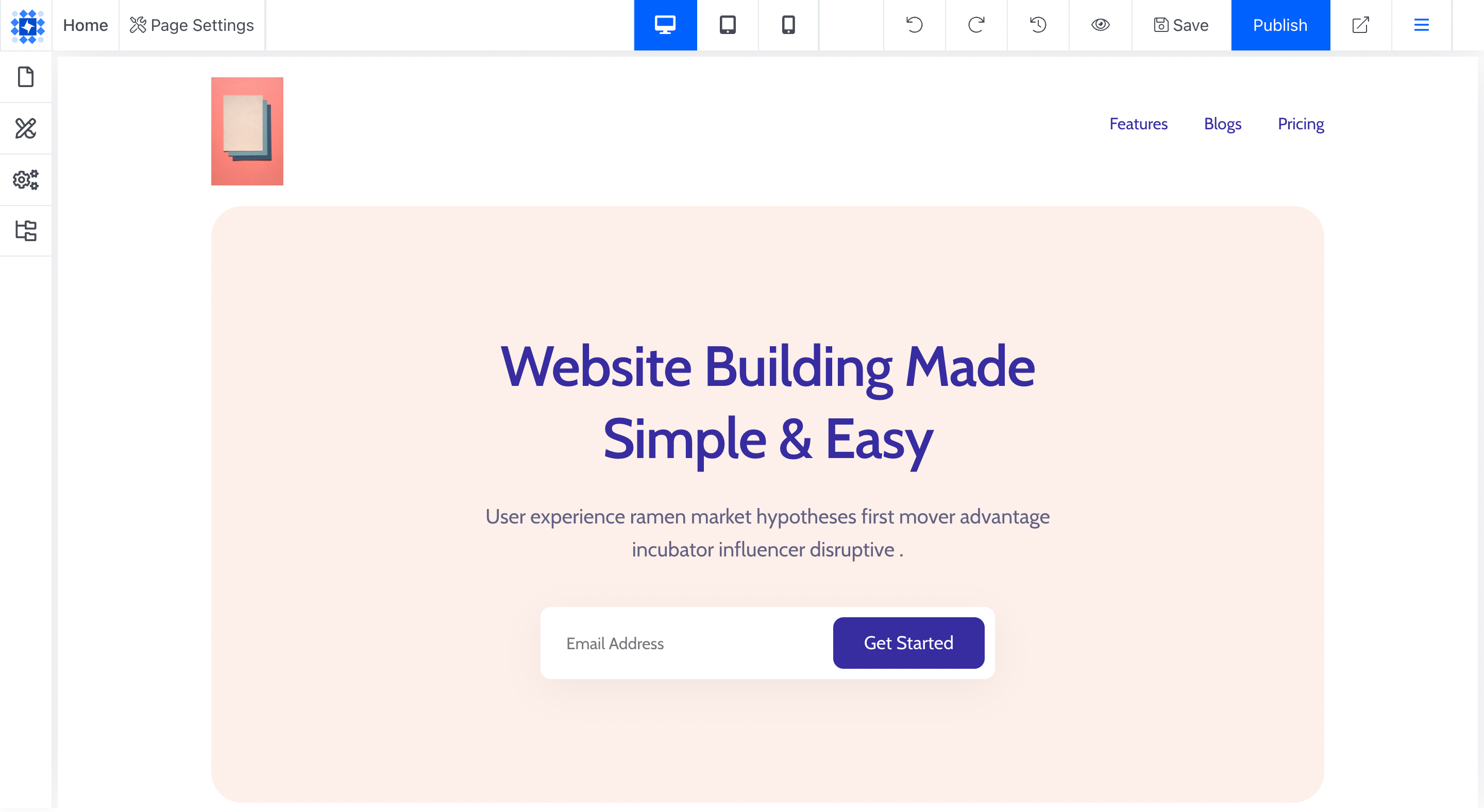
Current Page, Page Settings, Page View
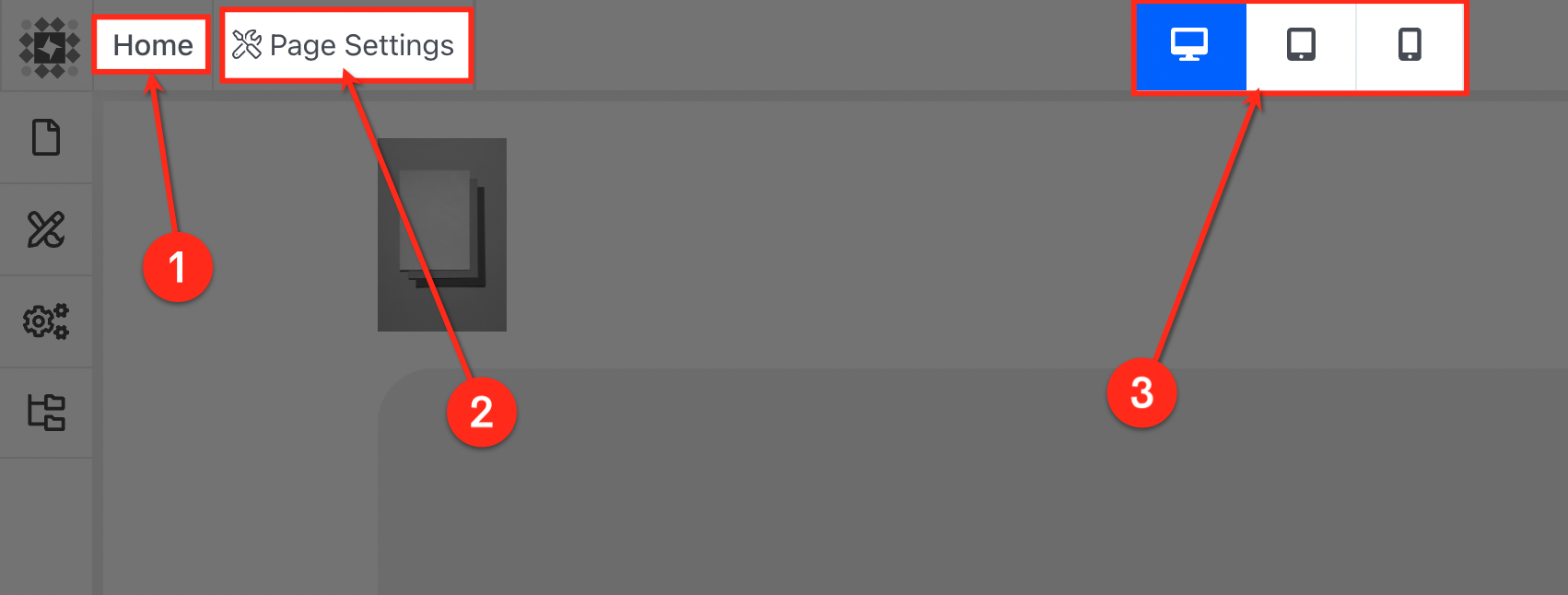
1️⃣ Current Page: This shows the current page you are editing.
2️⃣ Page Settings: Change your page settings here.
3️⃣ Device Responsive: Using this feature, you can preview and edit what your website will look like on various devices.
Undo-Redo, Preview, Version History, Save, Publish, and Visit Site
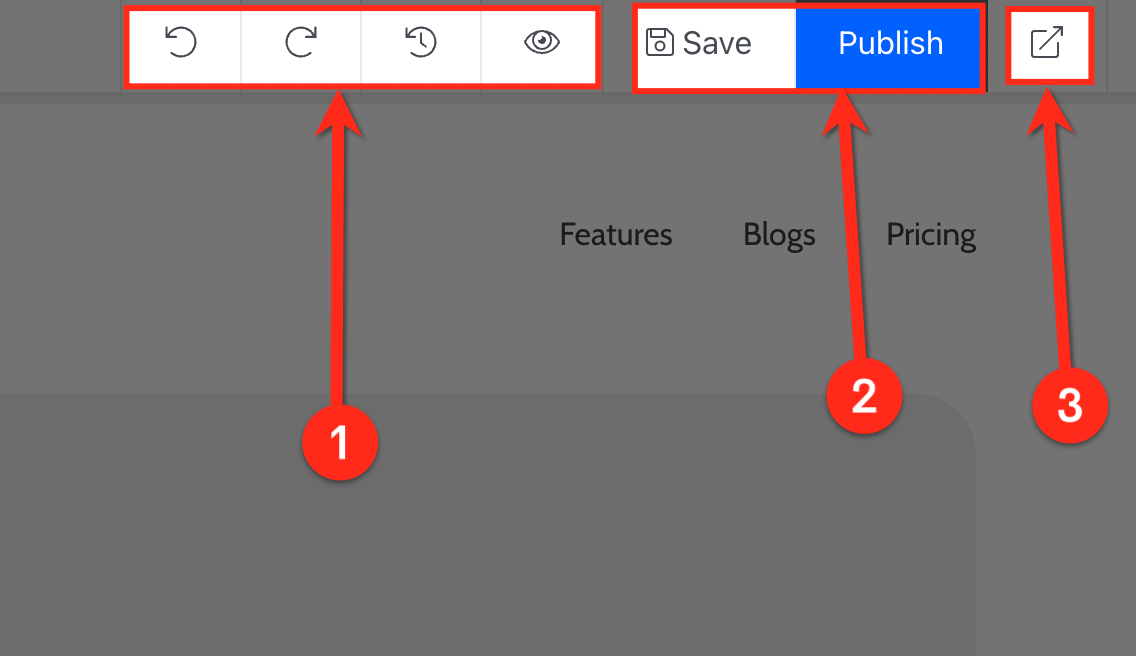
1️⃣ Undo-Redo, Version History, and Preview:
Undo button lets you revert changes for a small period, while Redo button lets you change them back. The Version History 🕔 lets you access previous versions of your web pages by manually or automatically saving page versions. And the Preview 👁️ button lets you look at your site's appearance for a visitor.
2️⃣ Save and Publish:
Save lets you save your work, and Publish lets you publish your site.
3️⃣ Visit Site:
After making changes and publishing, you can see your site with this button.
To learn more:-
💾 Save, Preview, and PublishHamburger Icon in Builder
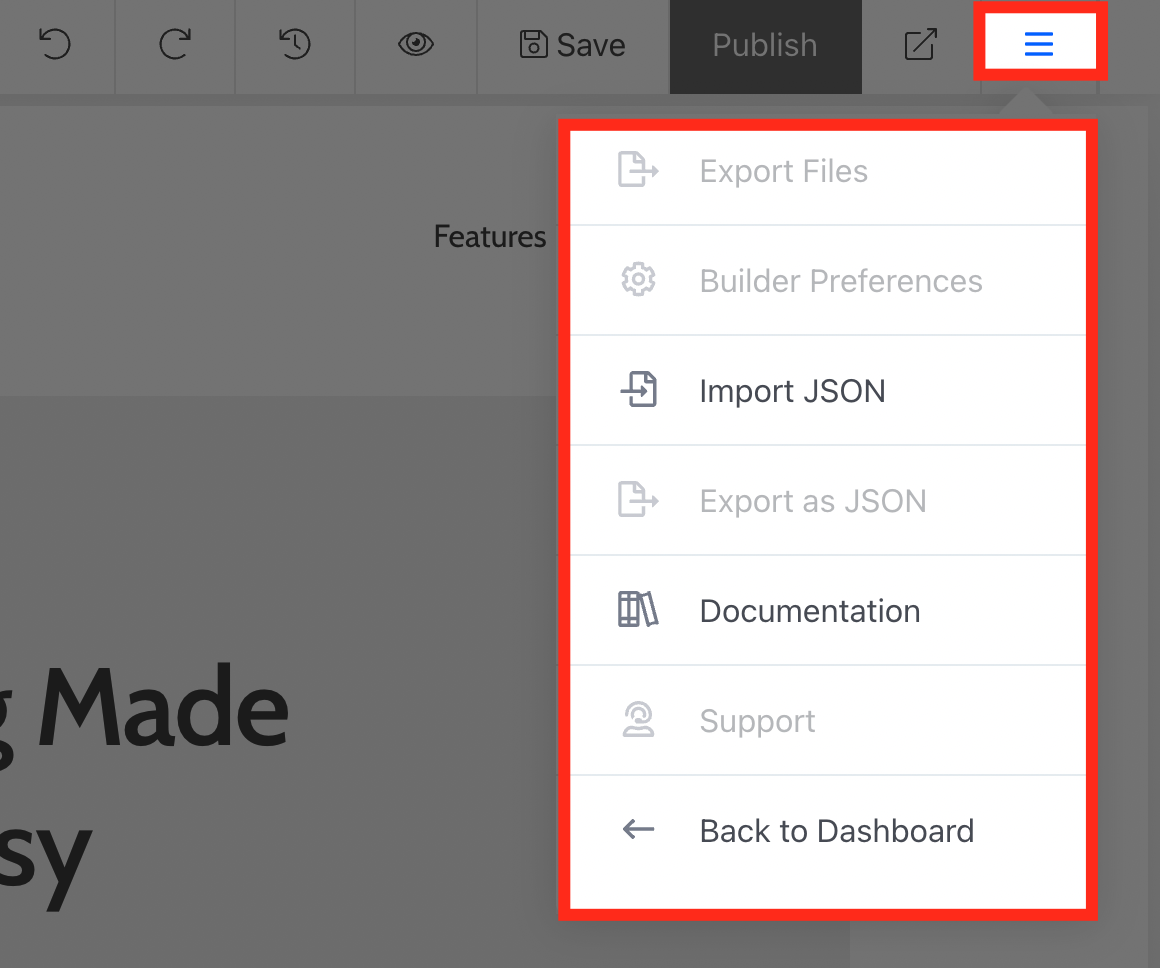
When you press the Hamburger icon on the top-right corner of your site, you will have the option to Import JSON, read this Documentation, or go back to your Dashboard.
Pages, Global Styles, and Site Settings
📑 Pages Global Styles Site Settings Navigation Tree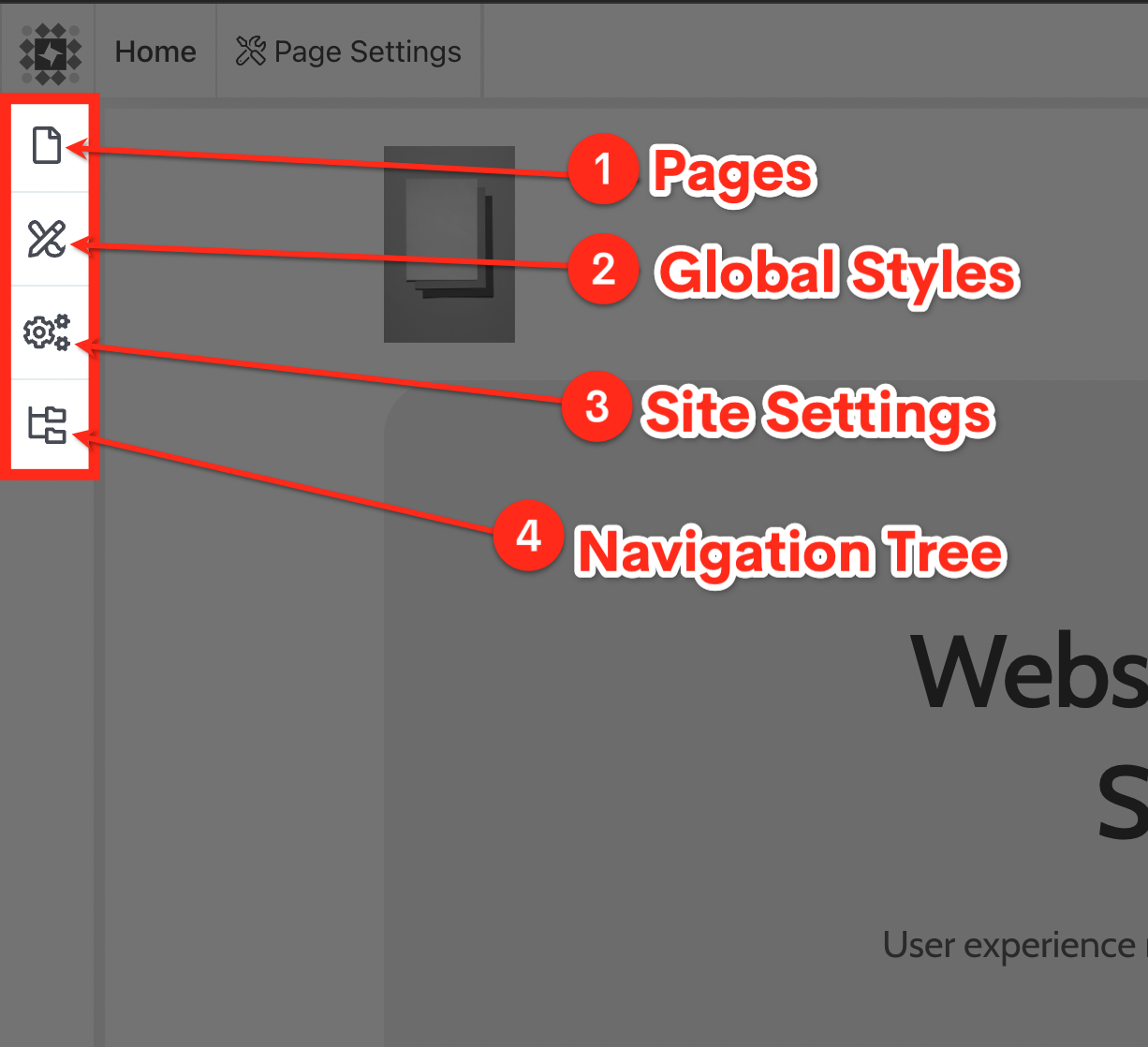
Related articles
◼️ Section, Row, Columns, Elements Fără titluAi nevoie de ajutor? Scrie-ne.