
Ajutor › Builder (Design and Pages)
CMS Row with column
Table of Contents
Getting Started
Add CMS Row and column to showcase CMS elements on your site. This article will show all the procedures to add a CMS row with a column on your website. Let us take a look…
Add CMS Row with Column
To add a CMS Row with the column, you should follow the below-mentioned steps:
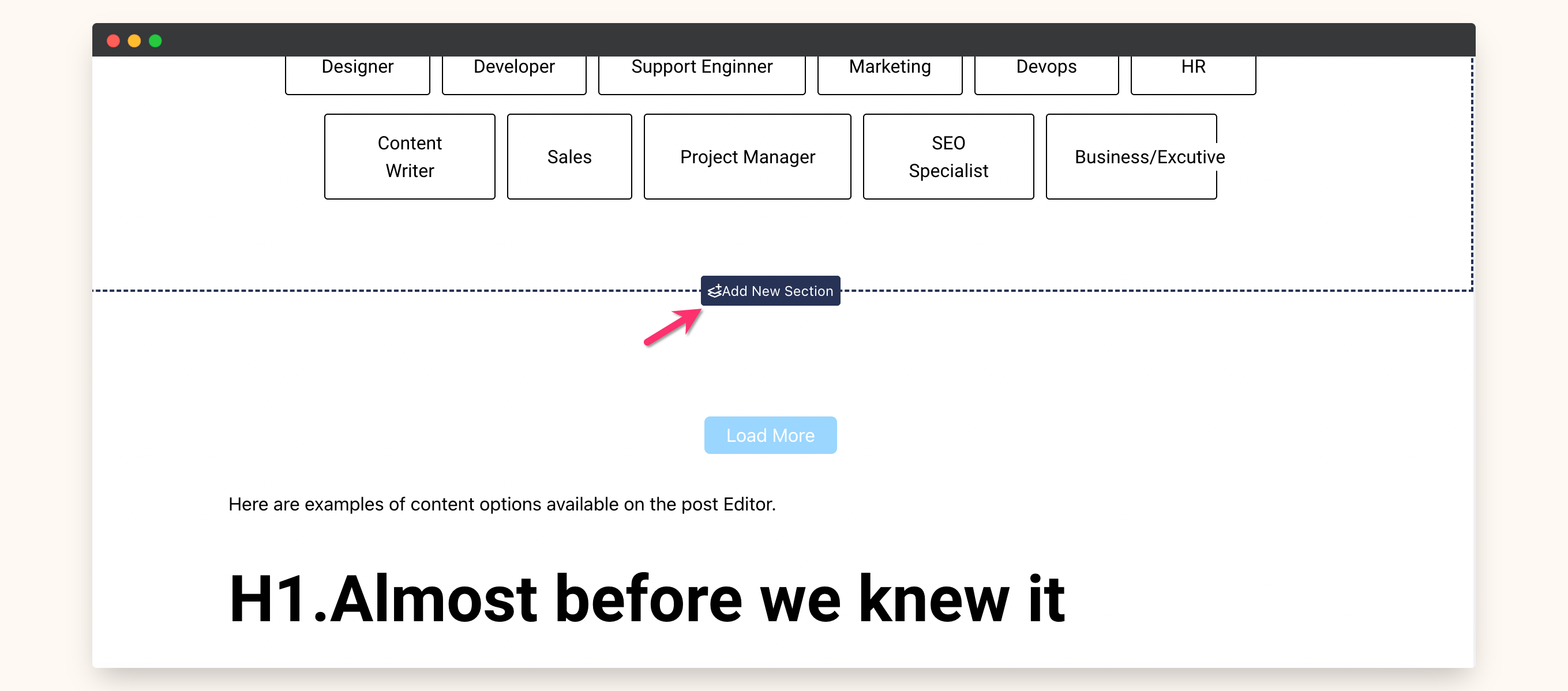
- Once you are in your website builder, Click on
Add New Section - Go to Custom Section
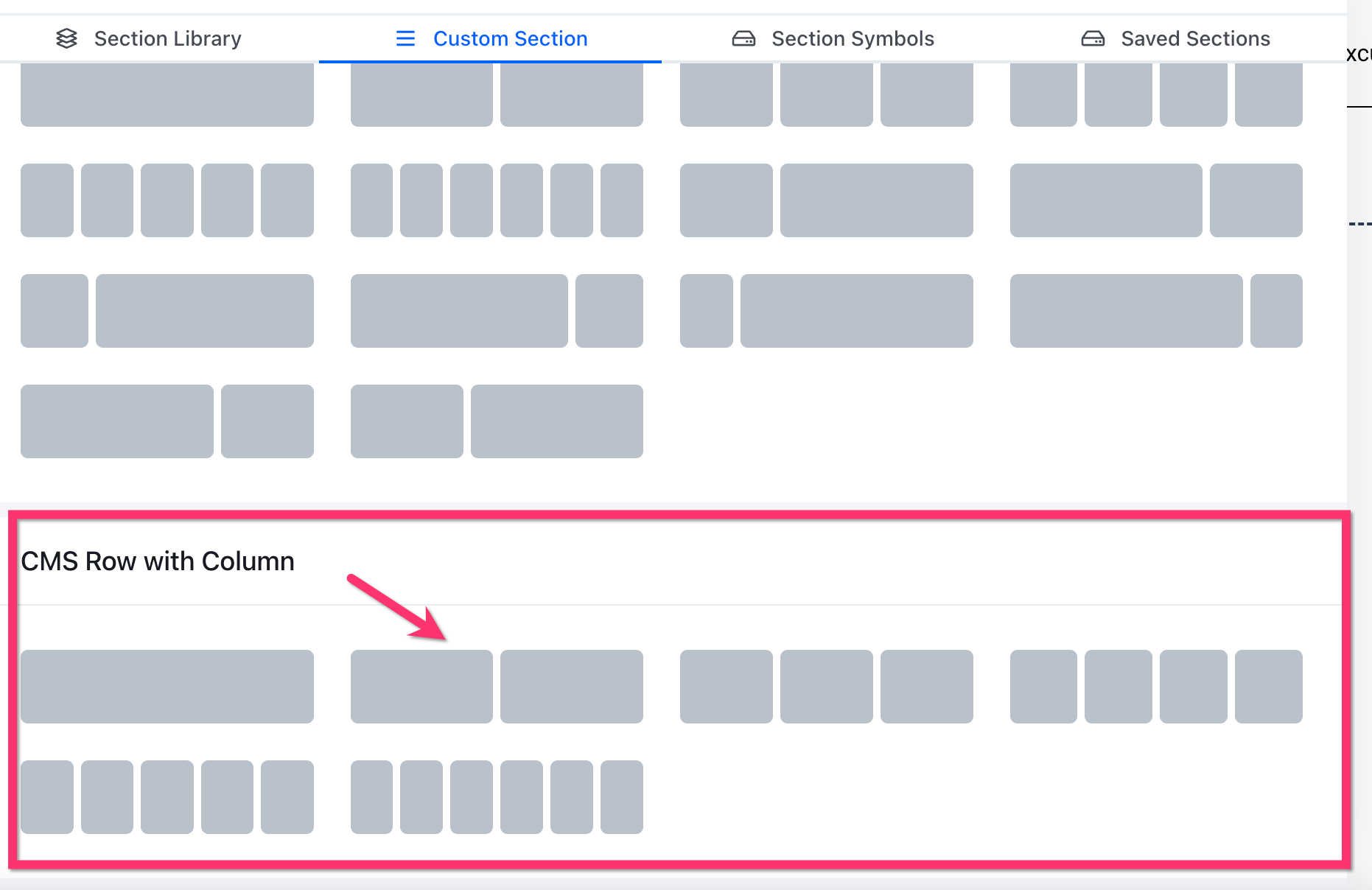
- Add any CMS Row with Column
- Click on Add New Section
- Go to Custom Section
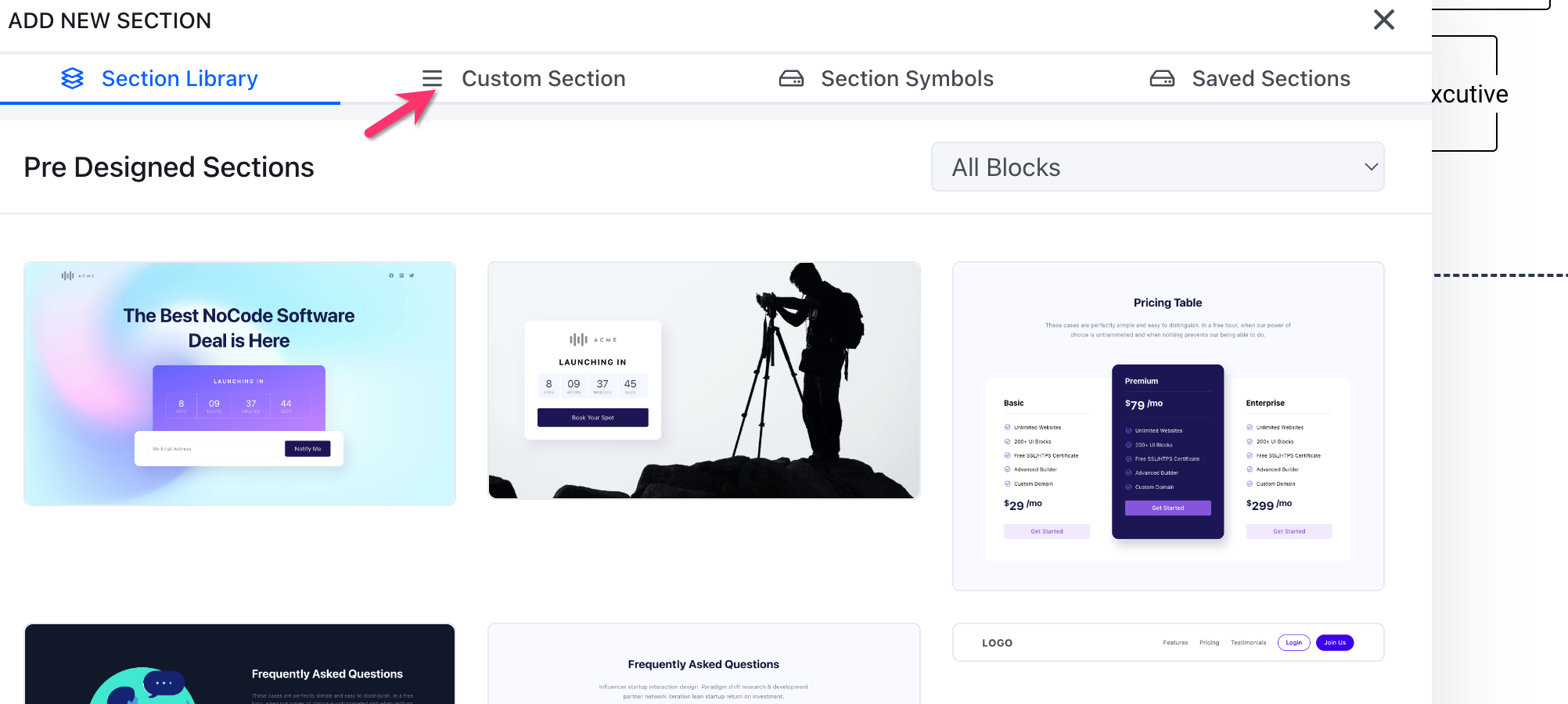
⚠️
Remember to select a CMS Row with Column to use CMS Features
- Add any CMS Row with Column
⬆️
The above-mentioned empty blocks demonstrate the number of columns inside one row. You can choose any of them according to your need.
Related articles
◼️ Section, Row, Columns, Elements Linking an element with a blog postAi nevoie de ajutor? Scrie-ne.