
Tabs
Getting Started
You can add tabs to your website with the Tab element. This article will cover how to add and edit a tab element using the following element. Follow all instructions accordingly.
Table of Contents
Adding Tab element
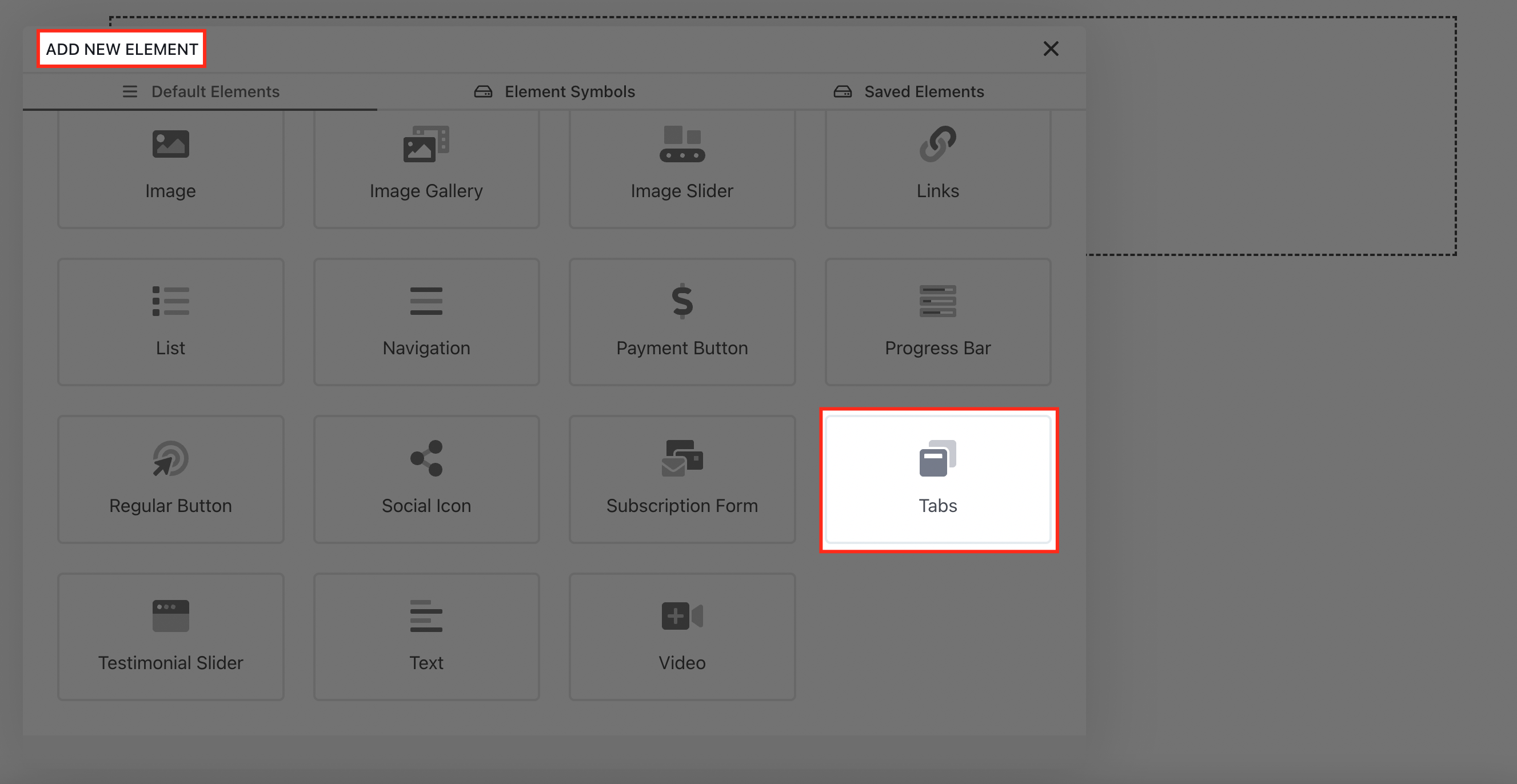
Follow the steps below to add a Tab element to your site.
- Click on Add Element in an empty row and section
- From the General Elements section, select Tab Element
Refer to the GIF below:

Tab element after it is added
Editing the Tab element
Follow the steps and instructions below to add and edit a Tab element on your site.
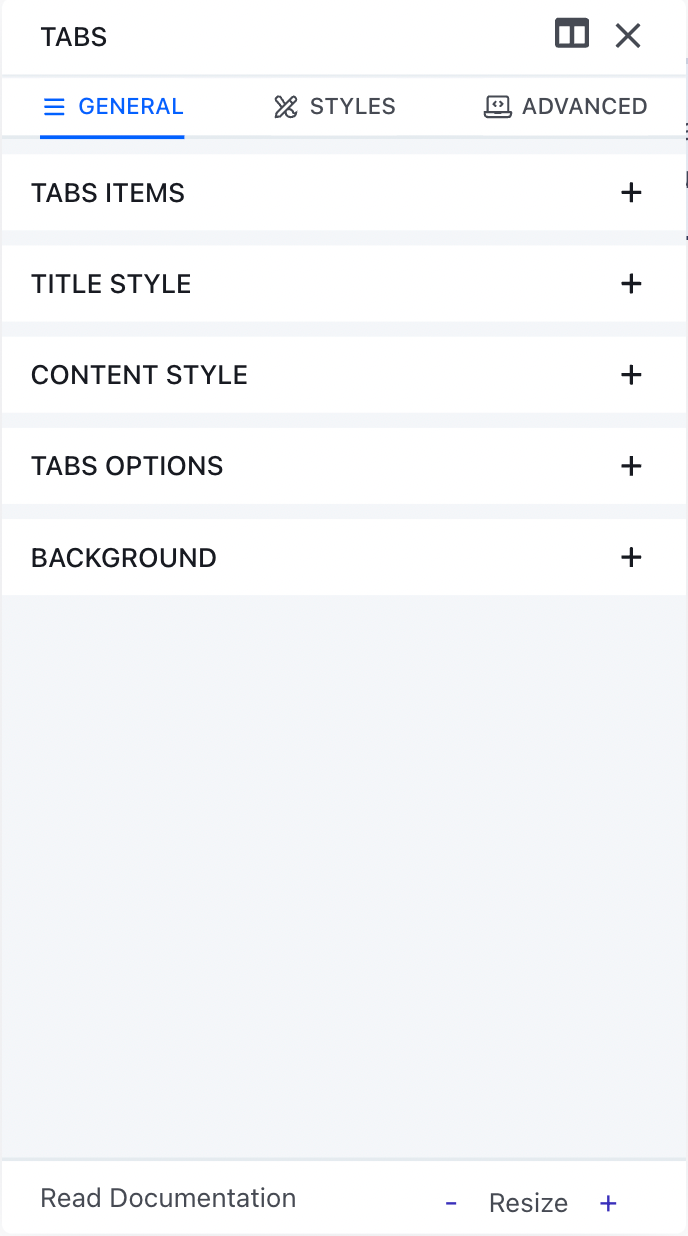
The Tab element editor has the following options:
- Tabs Items
- Title Style
- Content Style
- Tabs Options
- Background
The Tab element editor:
Tab Items
This option lets you copy, edit and delete items in your tab. Refer to the GIF below to demonstrate the settings inside this option.
Title Style
This option lets you stylize the title in the Tab element. With options like changing the color, adding a background etc.
Refer to the GIF below to see the settings being demonstrated inside this option ⬇️
Content Style
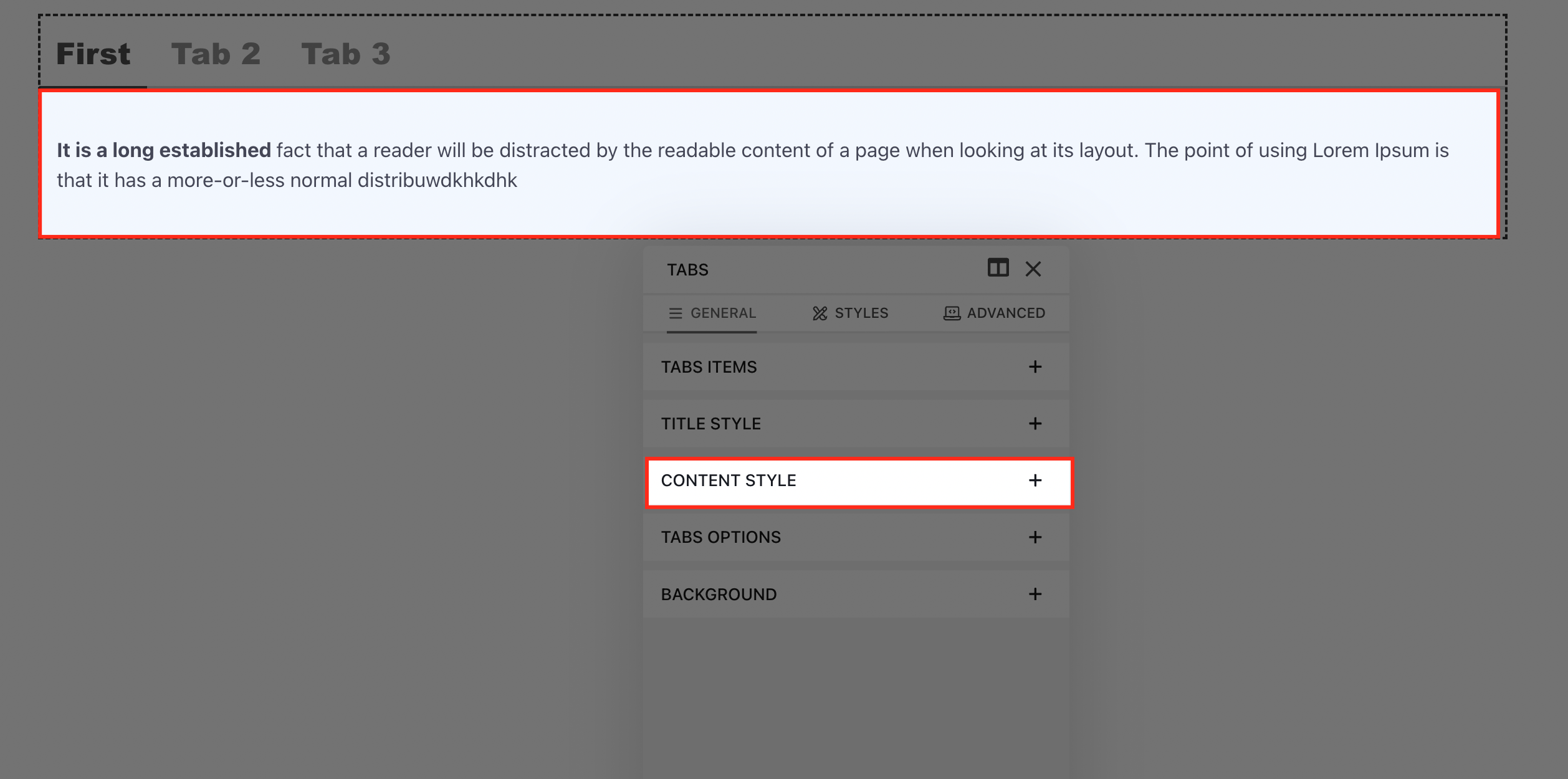
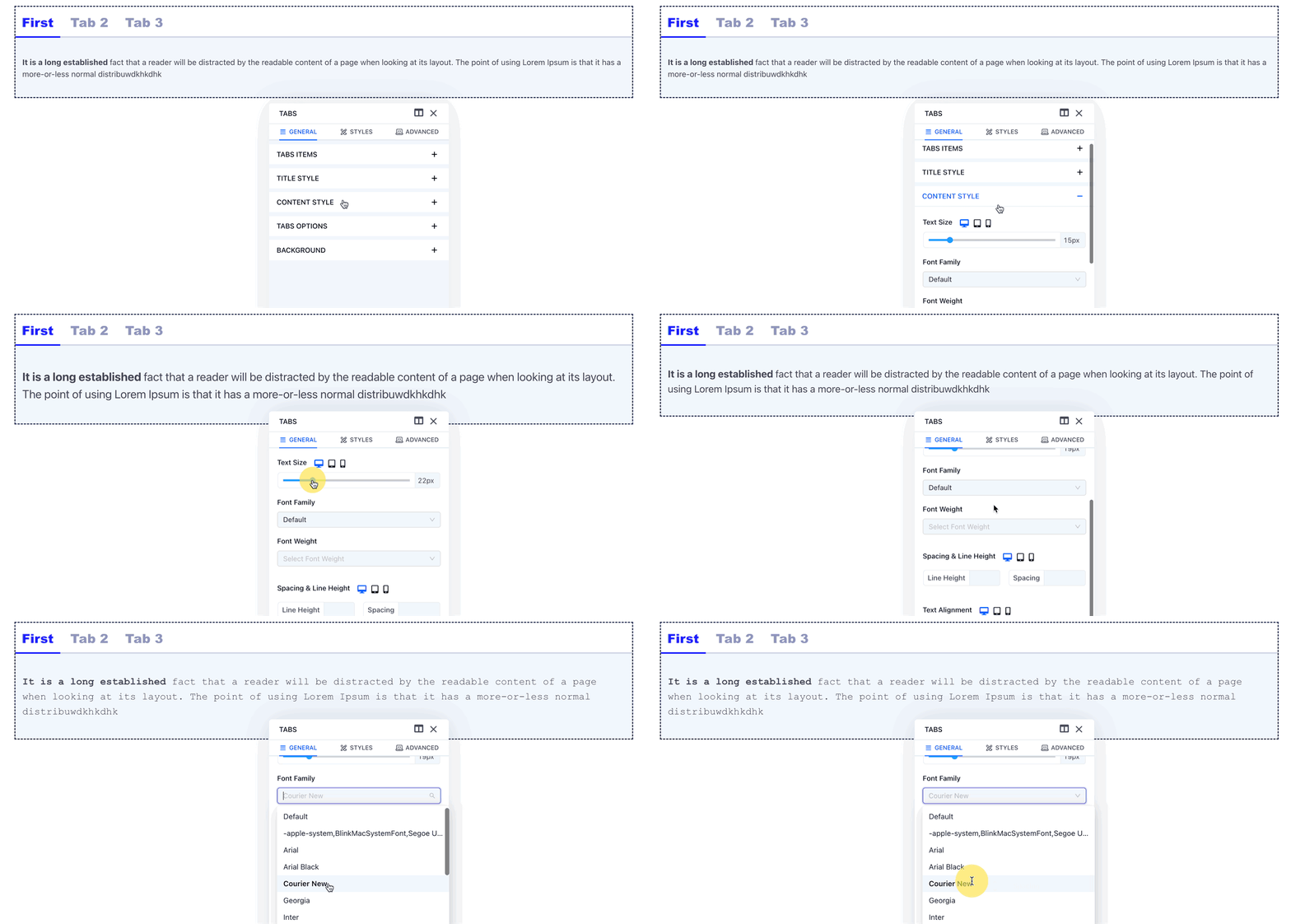
The content inside the Tab element can be edited from the Content Style option.
Refer to the Image and GIF below to see the settings being demonstrated inside this option ⬇️
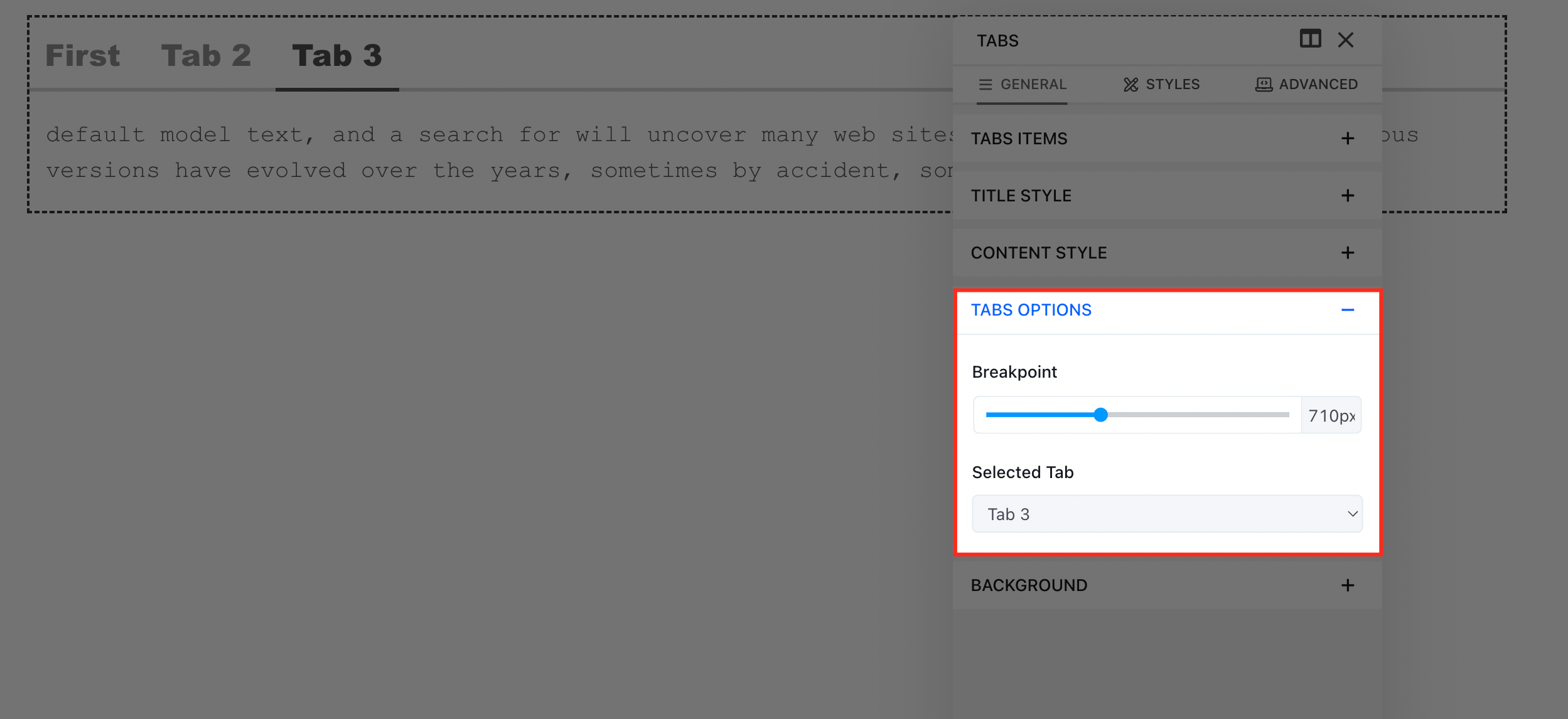
Tabs Options
This option lets you set a breakpoint for each tab. Use the Selected Tab option to choose the tab where you want to change the breakpoint.
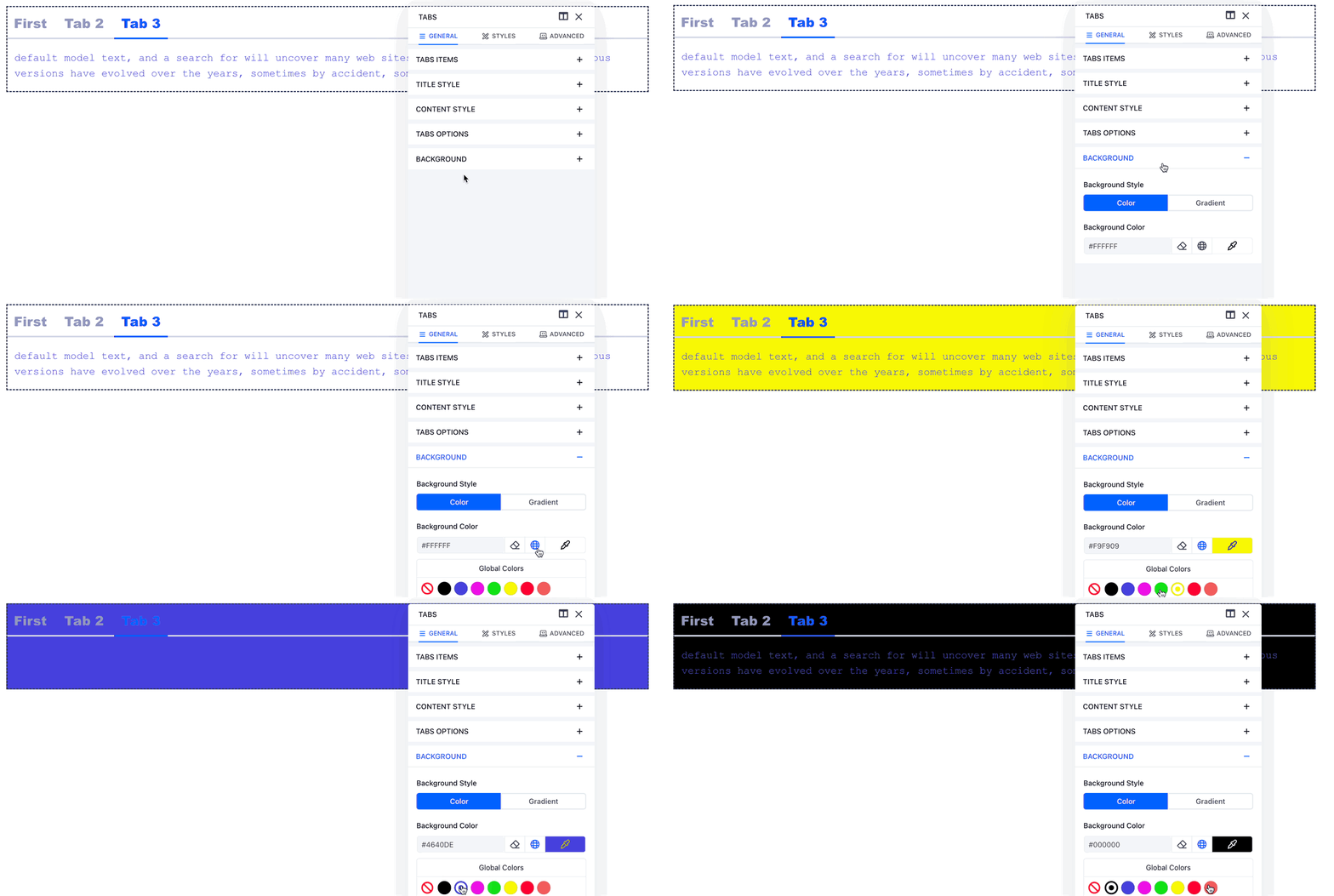
Background
In this option, you can change the background of the tab element, from adding a plain color to changing the gradient.
Related articles
🎚️ Content Slider➕ AcordionAi nevoie de ajutor? Scrie-ne.