
Heading/Title
Getting Started
As the name says, this element is about adding a heading or title anywhere on your website. This article will cover how to get started and follow the instructions as needed.
Table of Contents
Adding the Heading/Title element to your website
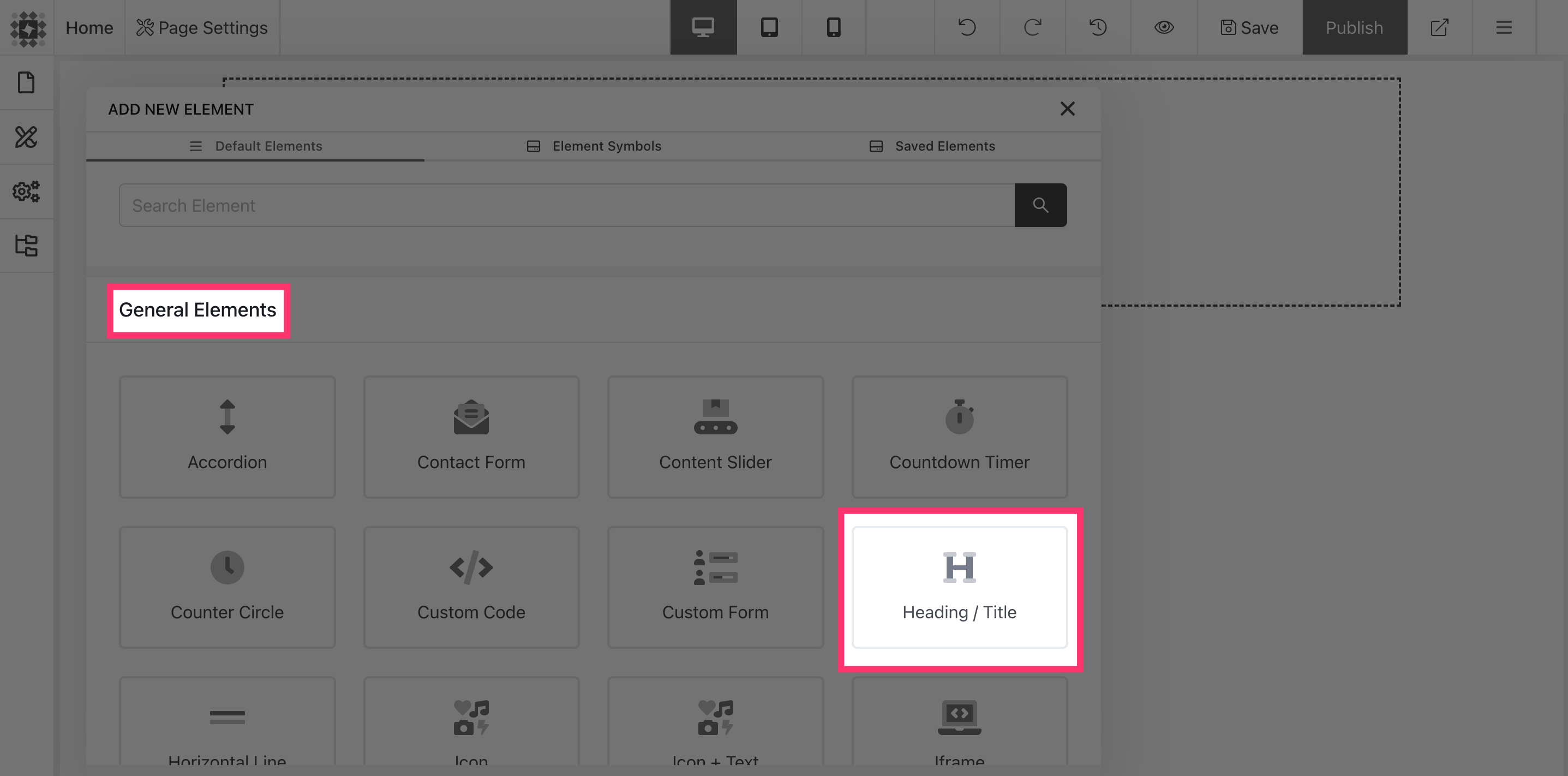
Follow the steps below to add a Heading/Title element to your site.
- Click on Add Element in an empty row and section
- From the General Elements section, select Heading/Title
Refer to the GIF below:

Heading/Title element after it is added
Editing the Heading/Title element
Follow the steps and instructions below to add and edit a Heading/Title element on your site.
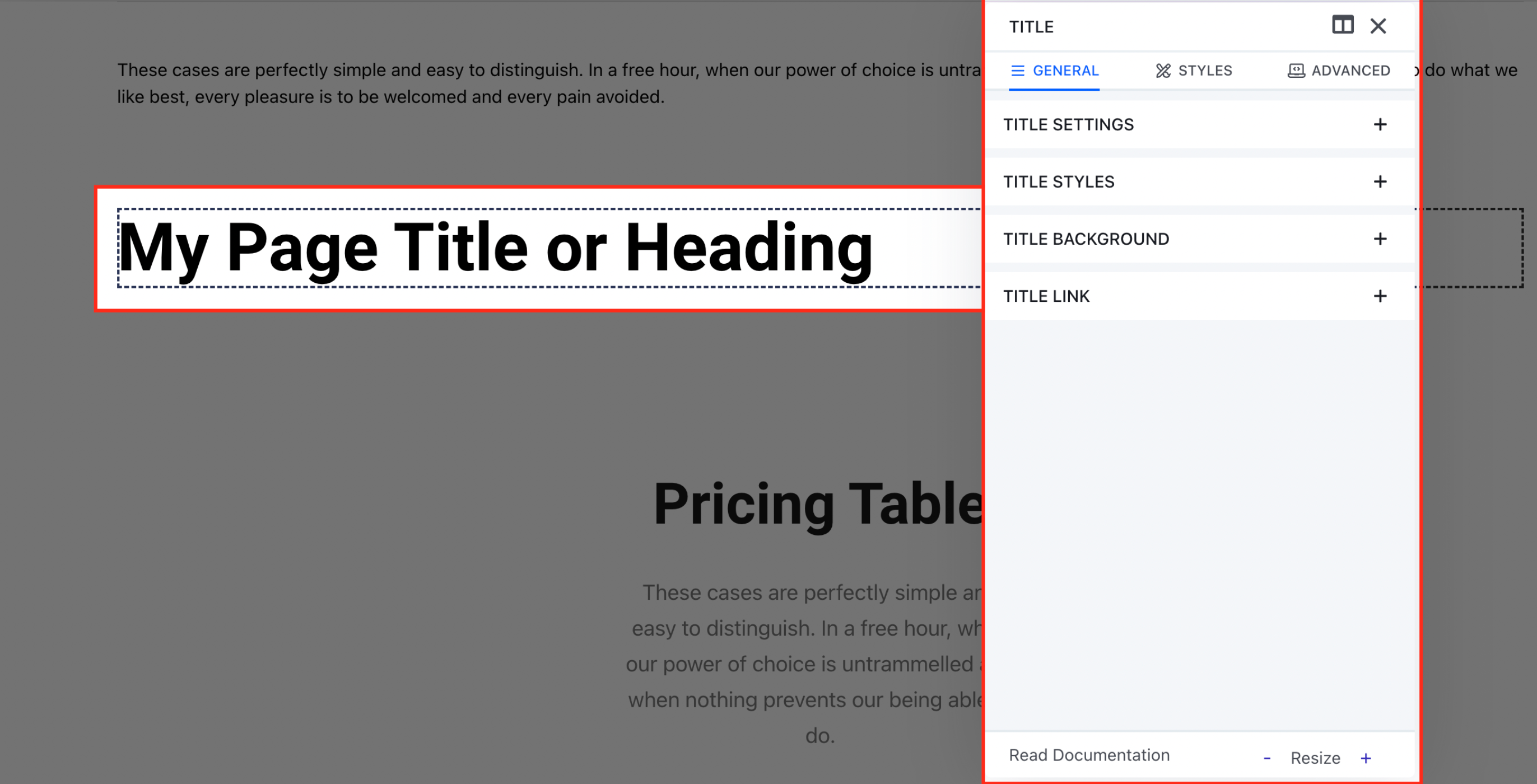
The Heading/Title element editor has the following options:
- Title Settings
- Title Styles
- Title Background
- Title Link
The Heading/Title element editor:
Title Settings
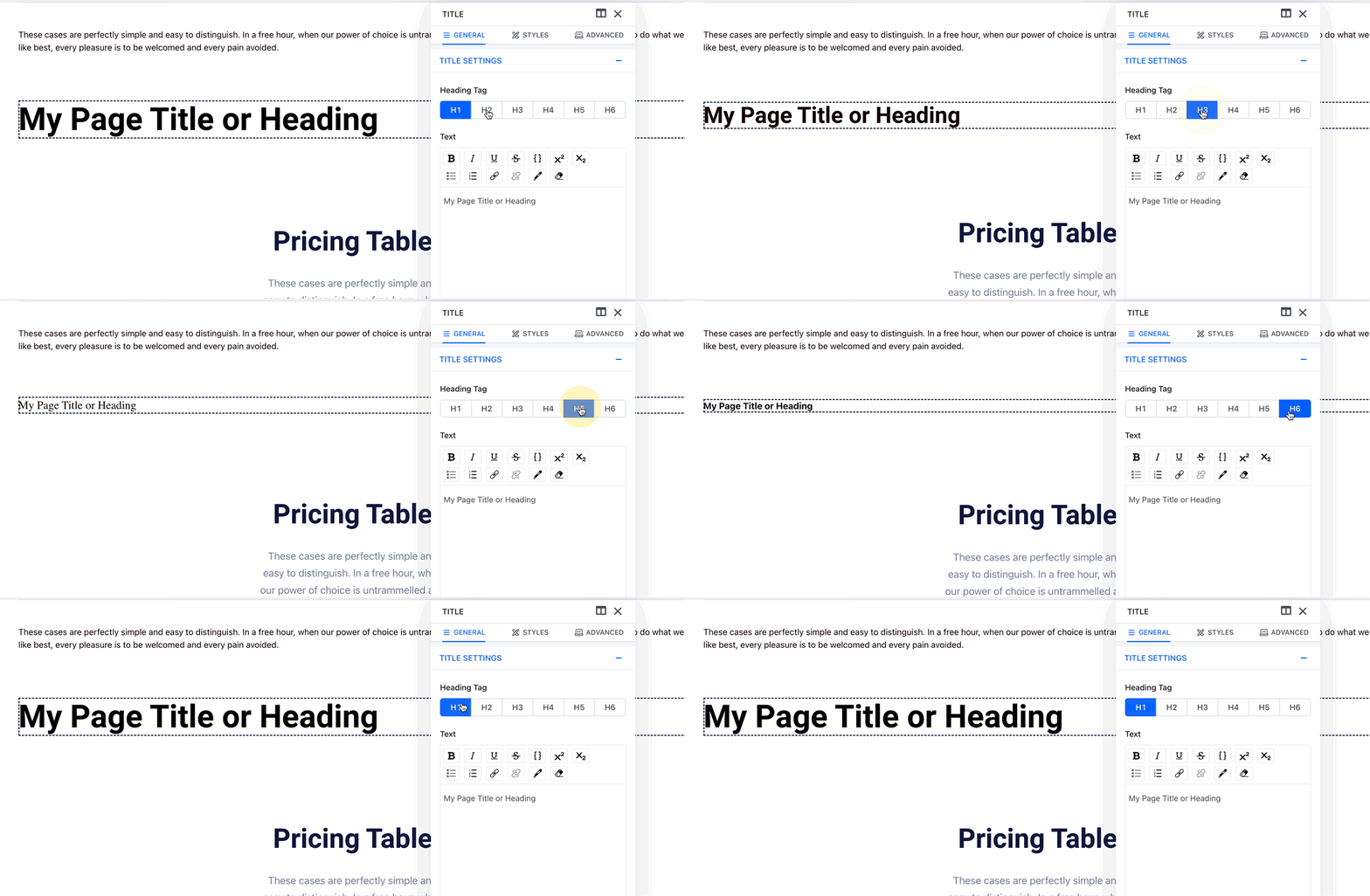
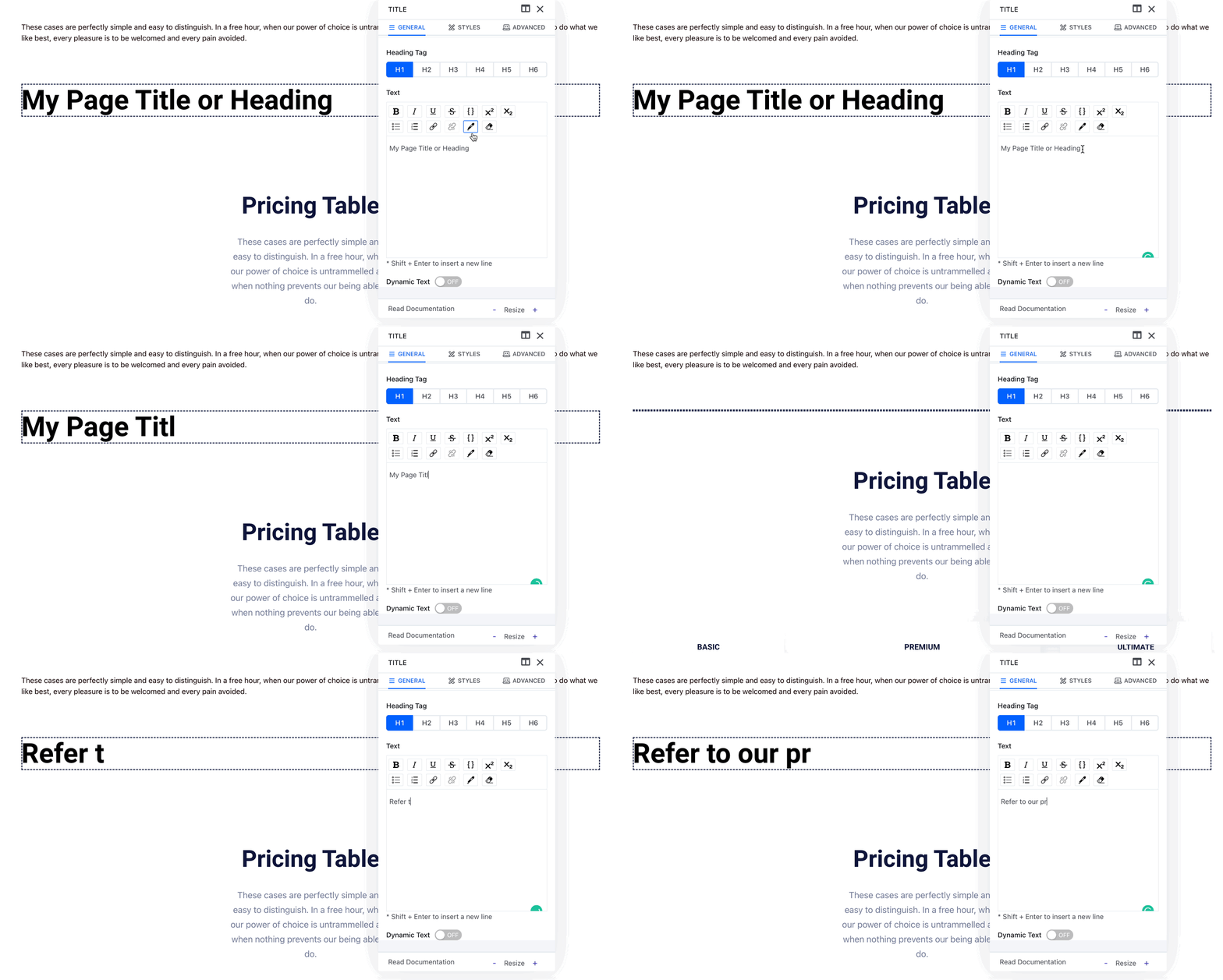
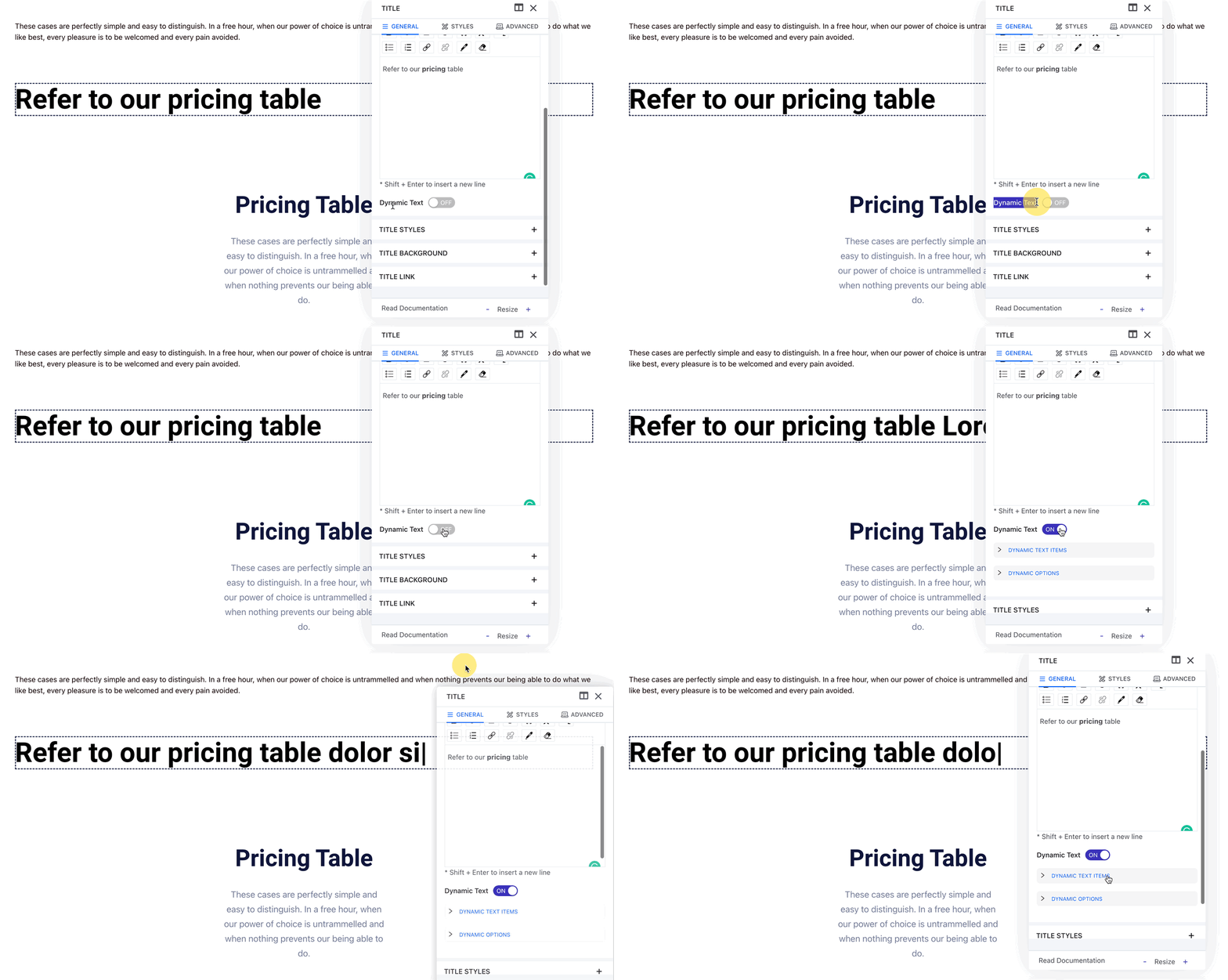
Inside this setting option, you can change various settings, including the title or heading text, change the heading tag, add dynamic text, etc.
Refer to the GIFs below to see these settings in action:
Title Styles
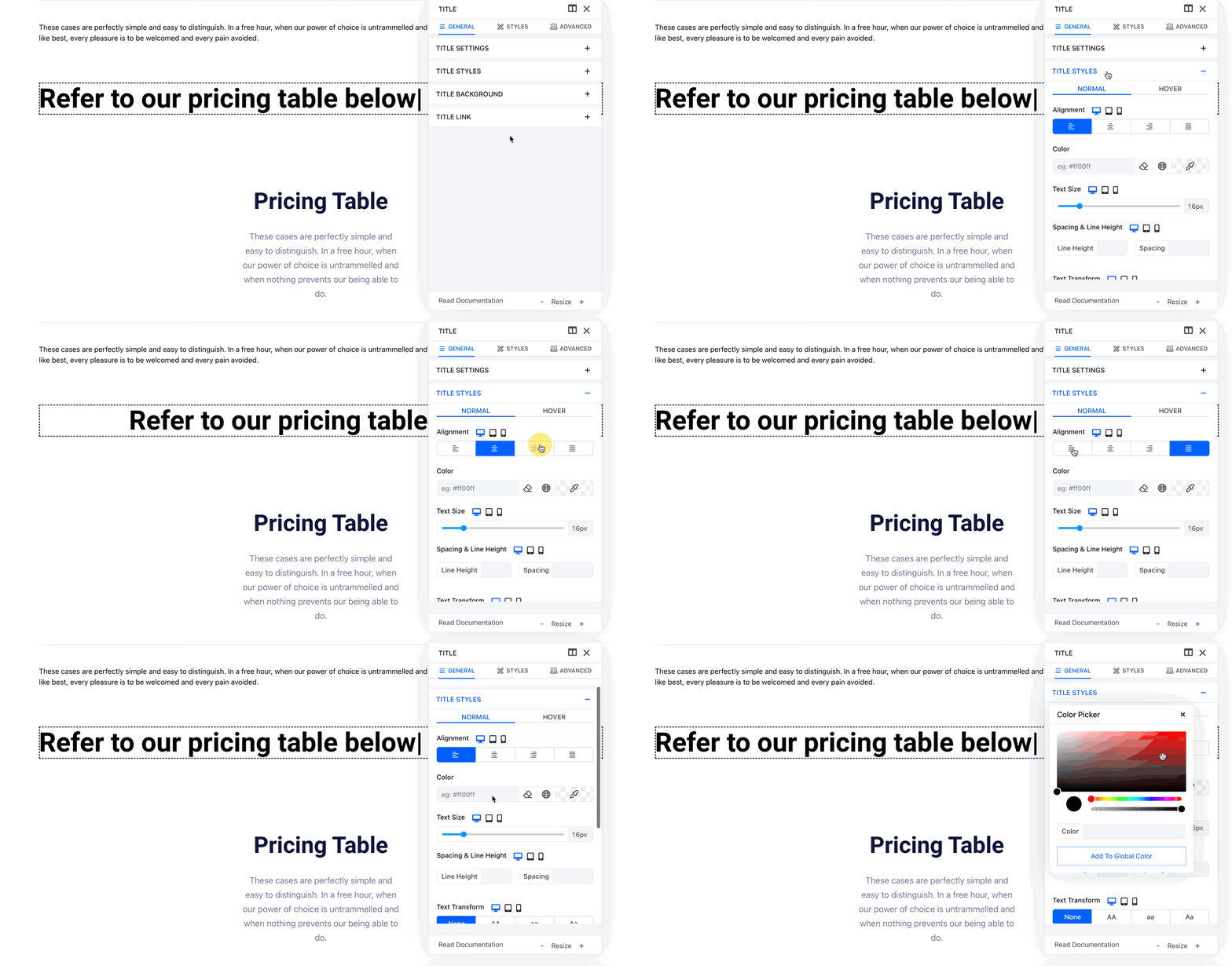
From this setting, you can stylize your title or heading with options like changing the text size, position, giving it a shadow, etc.
Refer to the GIF below to see these options in action.
Title Background
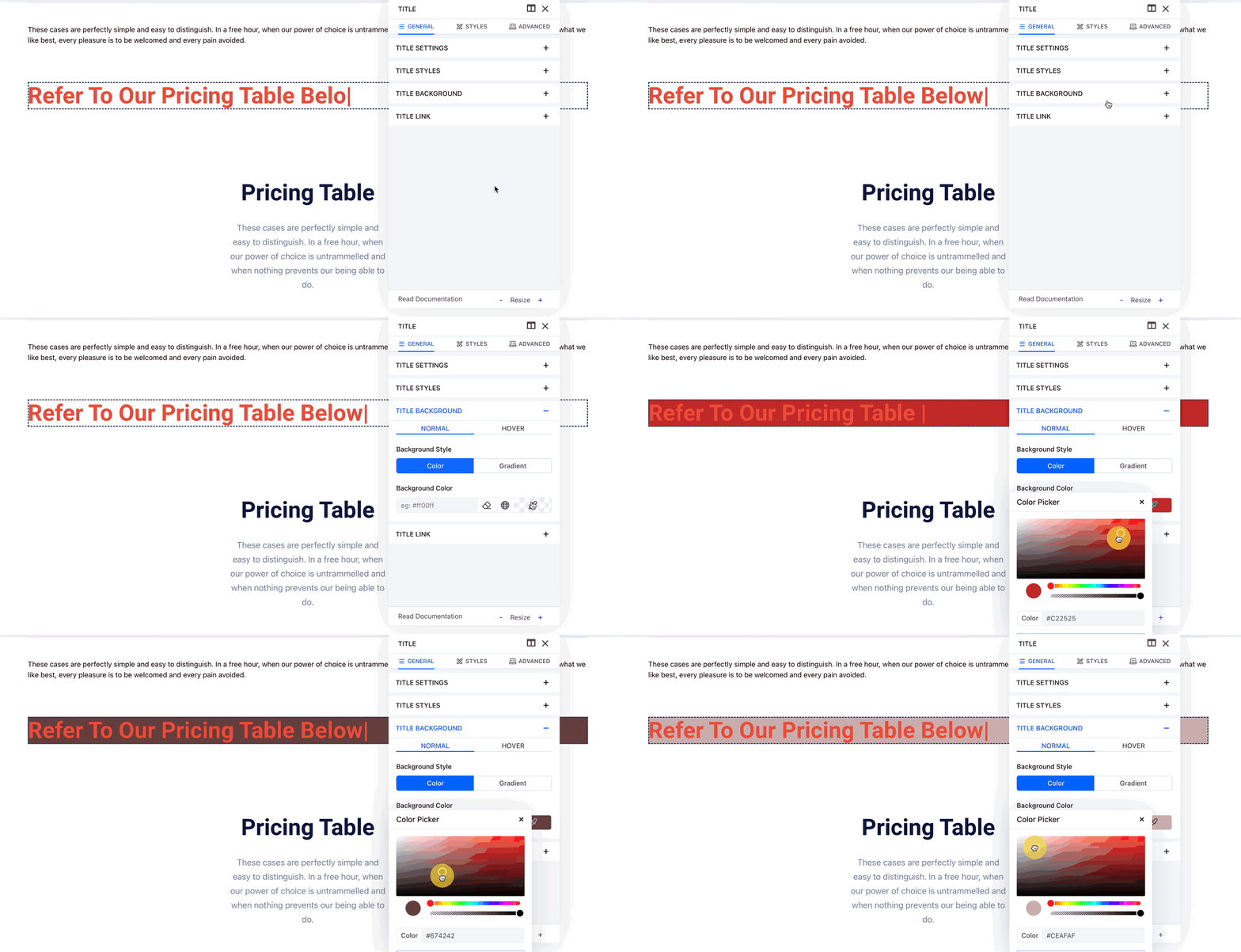
This setting allows you to give your title/heading a background, ranging from simple color to a gradient or an image. Each option has its setting.
Refer to the GIF below to see these options in action
Title Link
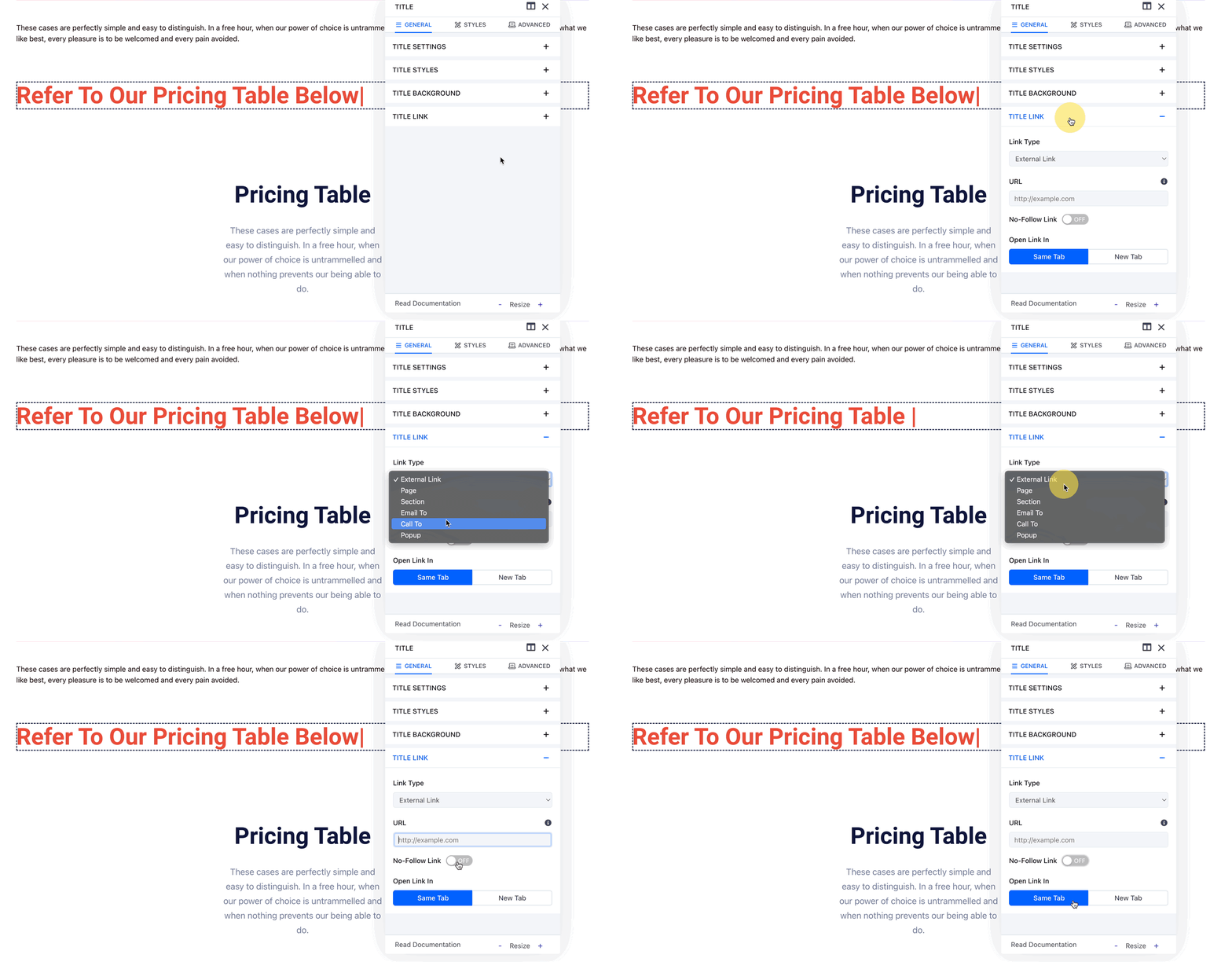
If you want the element to do more than just appear as a heading or title on your website, you can make sure it works as a link upon clicking. You can choose various link types ranging from redirecting it to an external site, page, or section in your website.
Refer to the GIF below to see these options in action
Related articles
Setările postării de blog🔤 TextAi nevoie de ajutor? Scrie-ne.