
Ajutor › Integrări Formular de Abonare
GetResponse - Subscription Form
Getting Started
This article will guide you to integrate GetResponse into a subscription form on your website. It will help you to collect your customer's data in the GetResponse cloud storage. Follow all the instructions accordingly to integrate GetResponse into your subscription form.
Table of Content
Adding a Subscription Form
Follow the below steps to add a Subscription form:
- Click Add New Section and select a Custom Section.
- Click on Add New Element.
- Then select Subscription Form from the element editor.
Refer to the GIF below:
For more details, refer to the below documentation:
Integrating GetResponse
To integrate GetResponse into your subscription form, follow the steps given below:
- After adding the Subscription Form, click on Edit Element
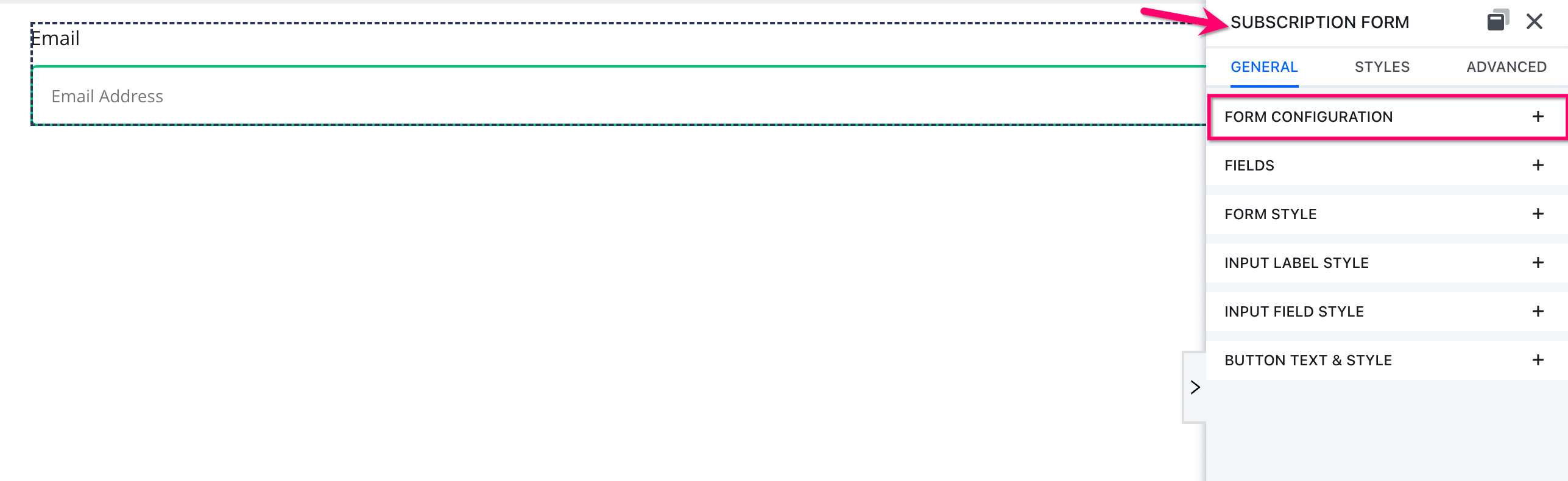
- Click on the Form Configuration option
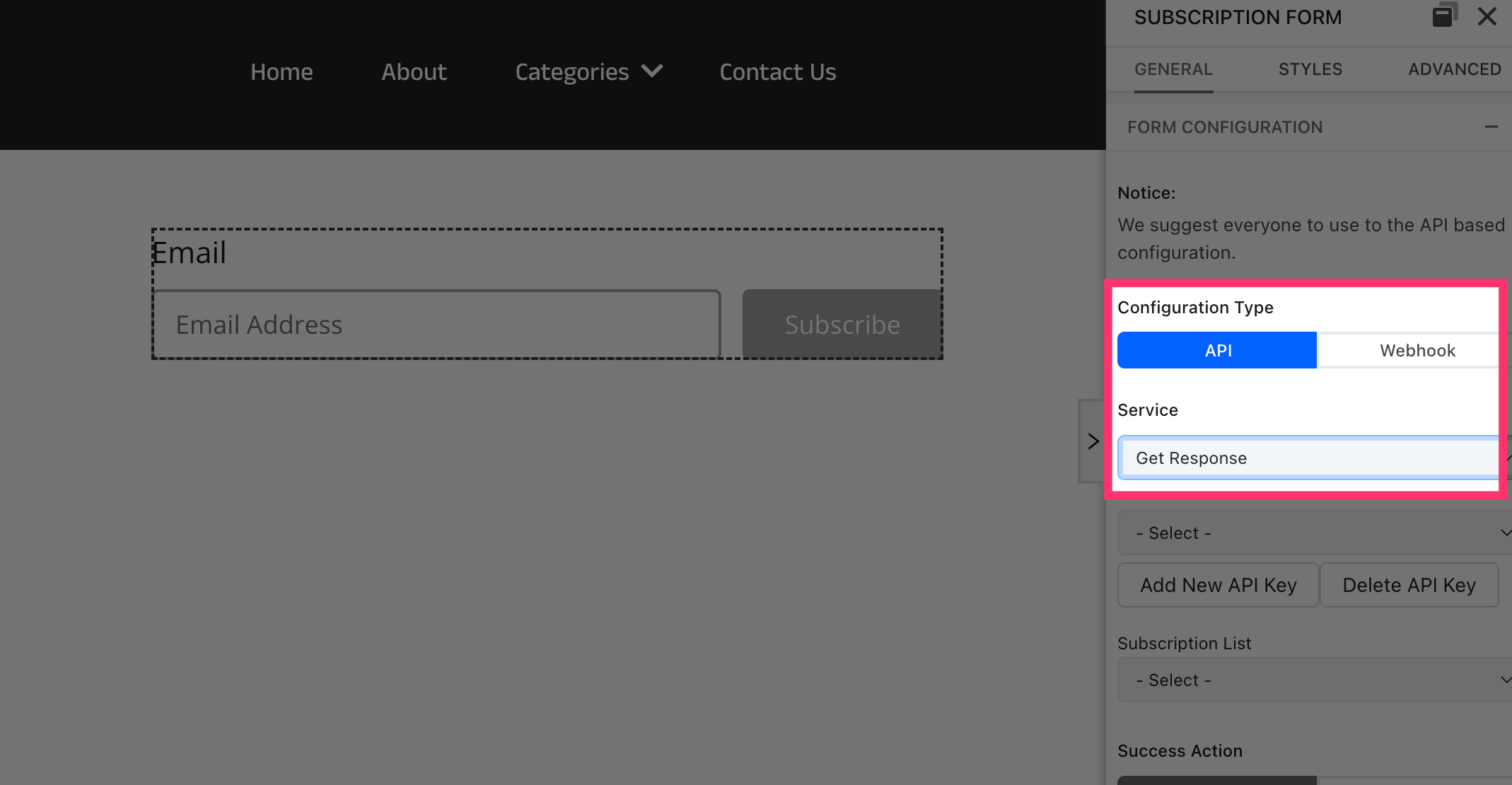
- Choose GetResponse from the Services option of API Configuration Type
- Go to getresponse.com and log in
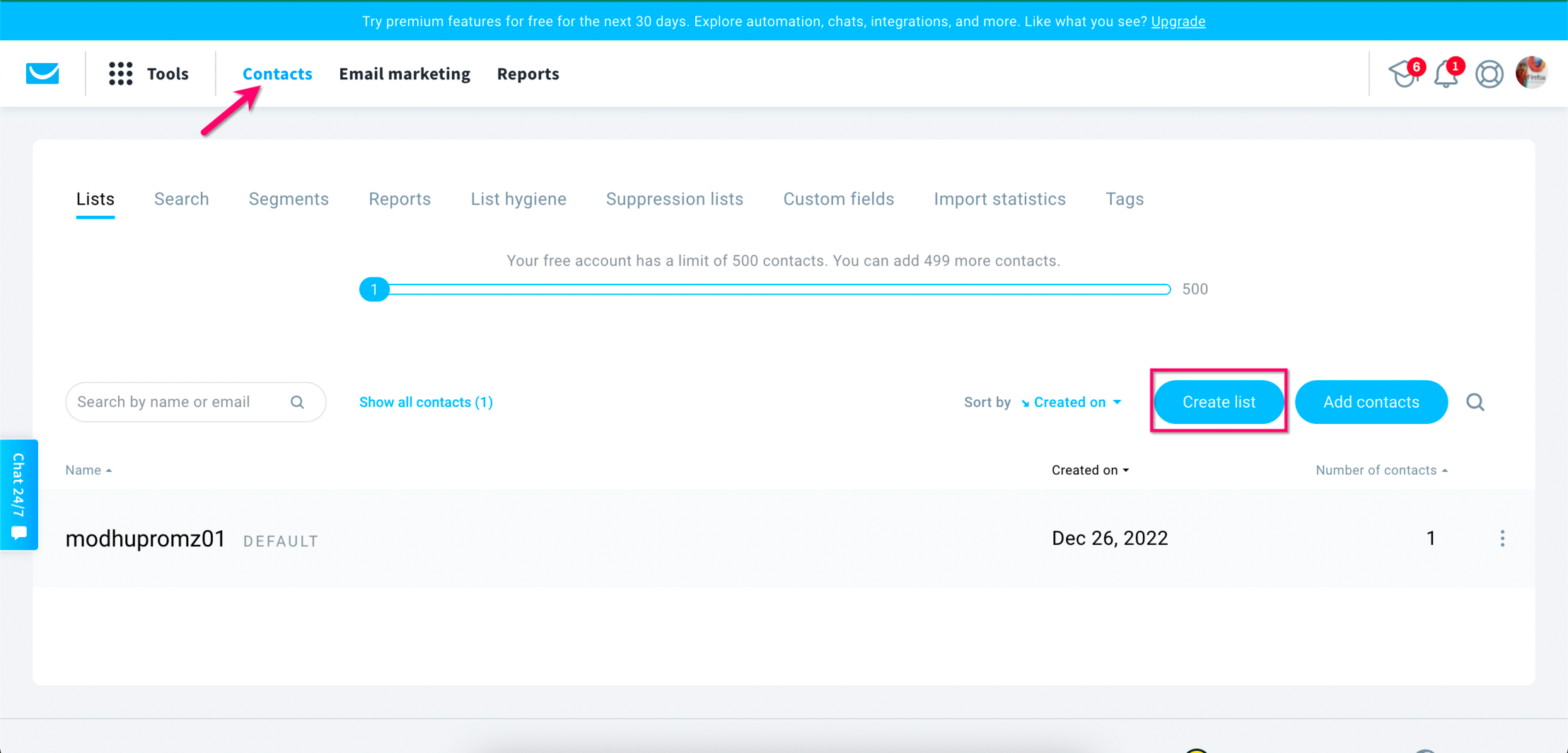
- From app.getresponse.com/lists create a list
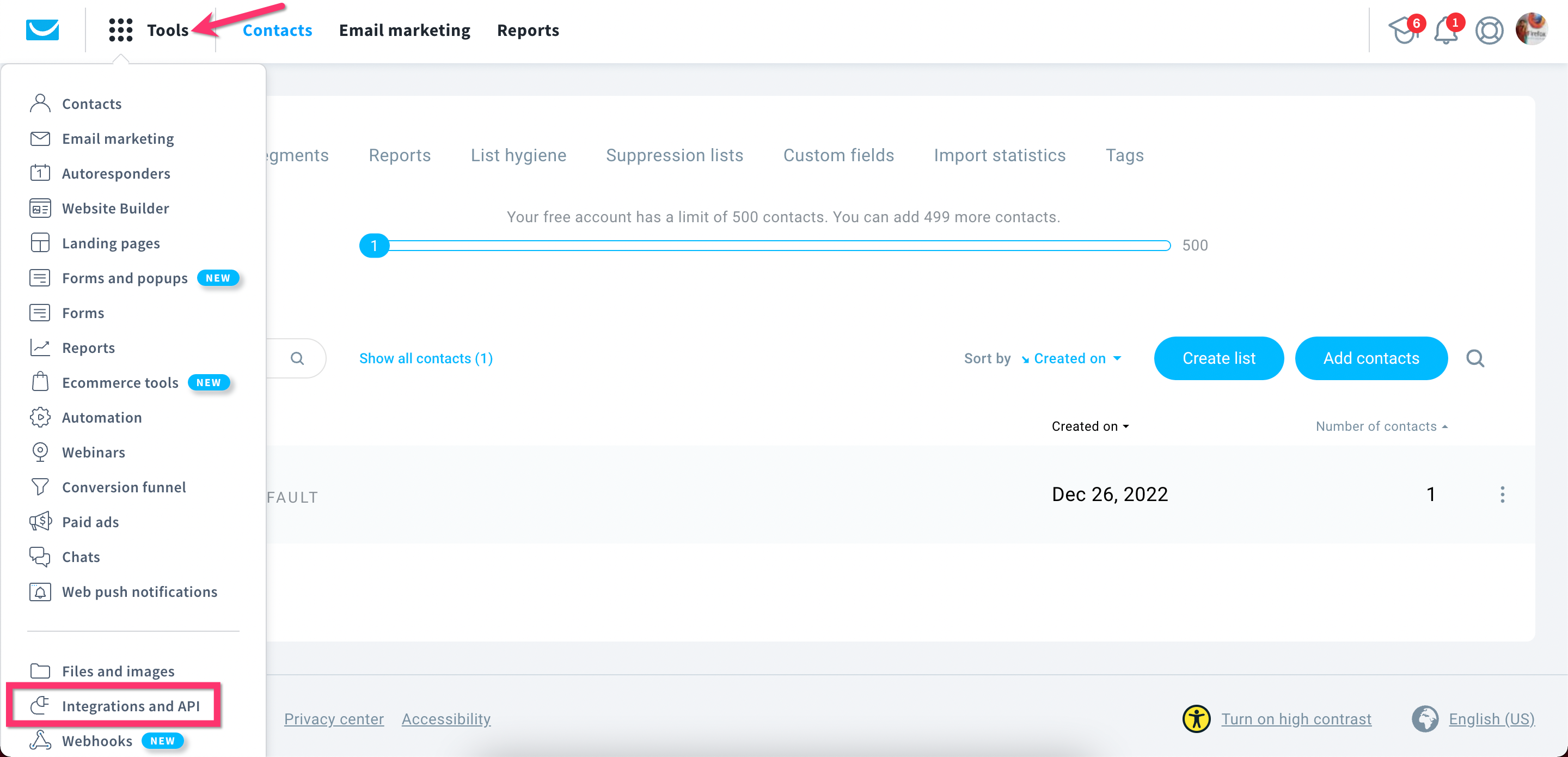
- Then go to app.getresponse.com/integrations and create a new API
- Go to Your Keys and click on the Create key button
- Enter a name for your new key
- Copy the API key
- Go to your website builder and click on Add New API Key on the Subscription Form element editor
- Paste your API key
- Choose your list name from the Subscription List option
- Done! GetResponse has been integrated with your subscription form.
Refer to the Screenshot and GIF below for a detailed explanation:
Step 1: Open the Form Configuration option from the Subscription Form Editor.
Step 2: Choose GetResponse from the Services option of API Configuration Type
Step 3: Go to getresponse.com and log in. From the app.getresponse.com/lists, create a list.
Step 4: Expand the Tools menu and choose Integration & API from the top-left corner of your screen.
Step 5: Click on the Generate API Key button from the API option.
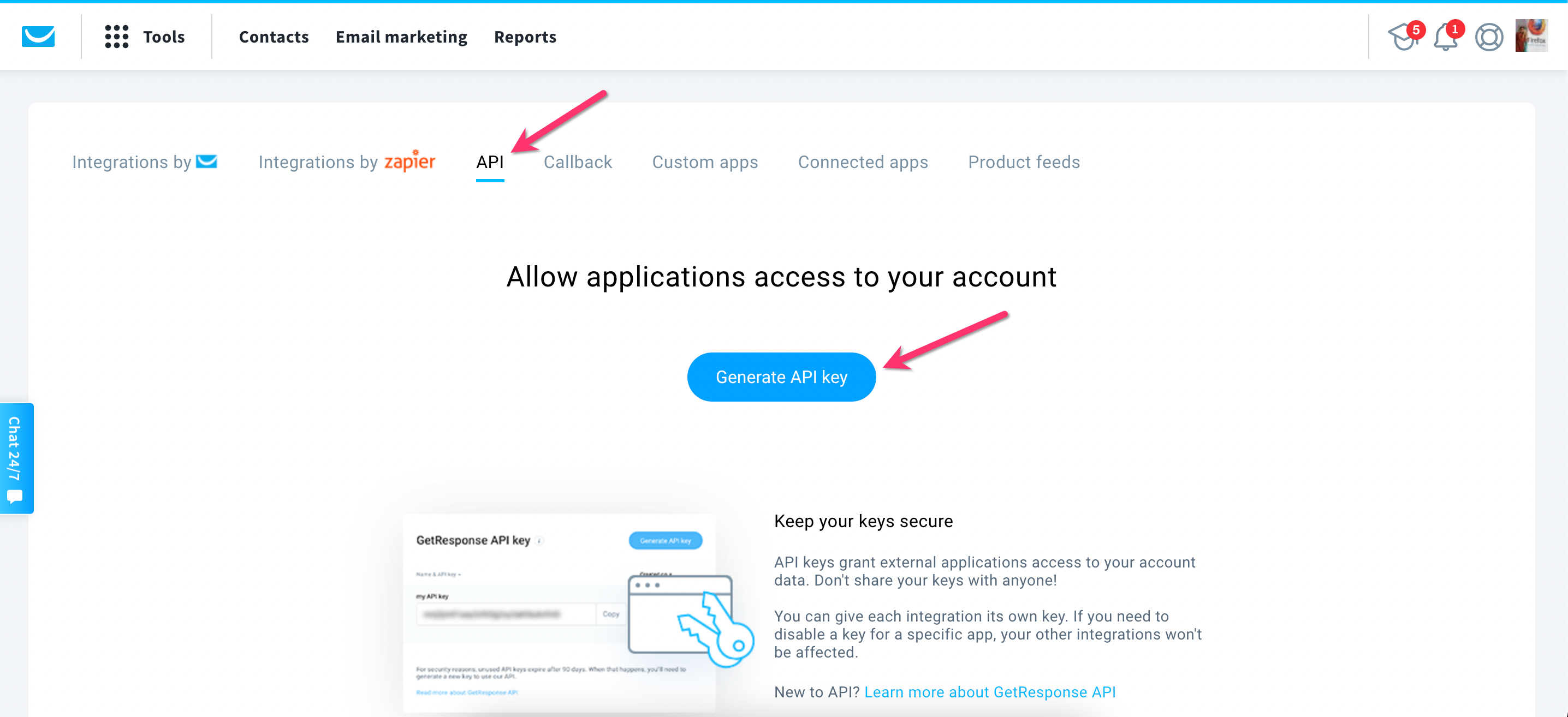
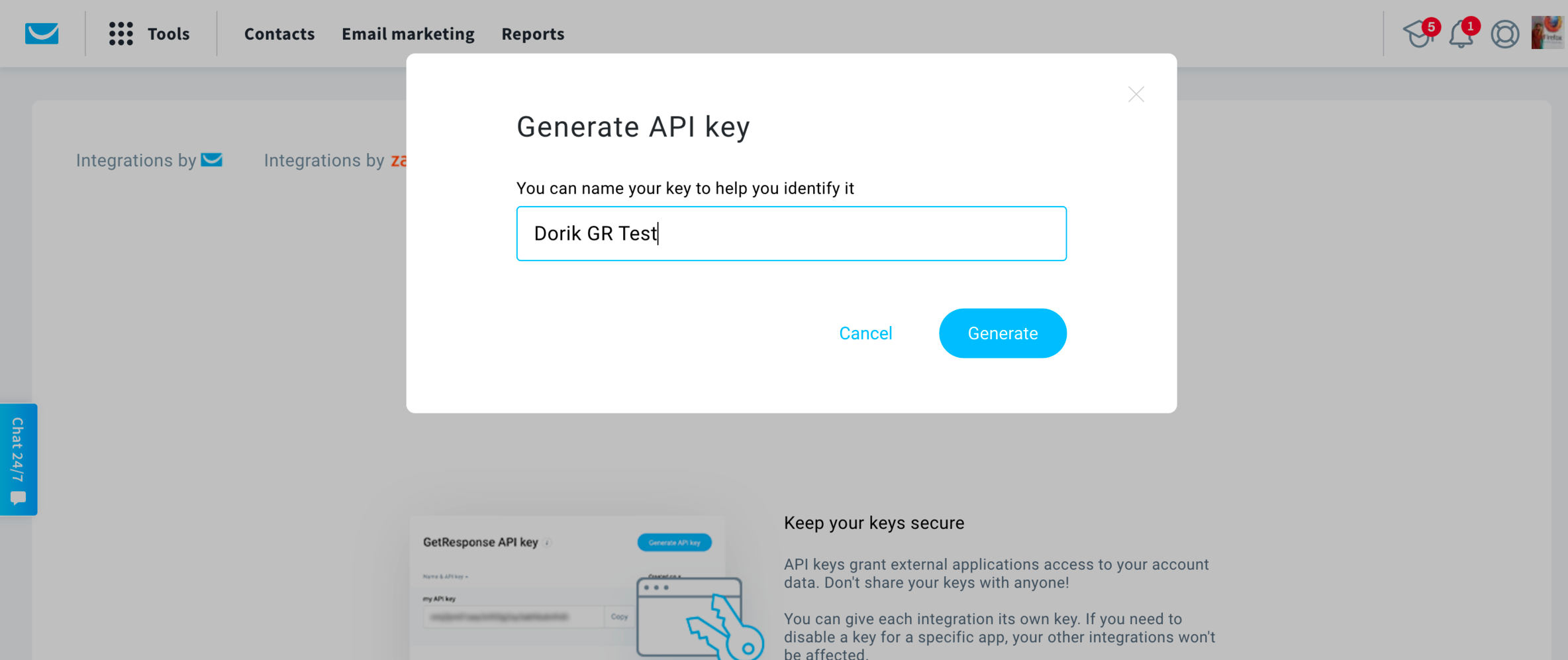
Step 6: Generate an API key by giving the key Name.
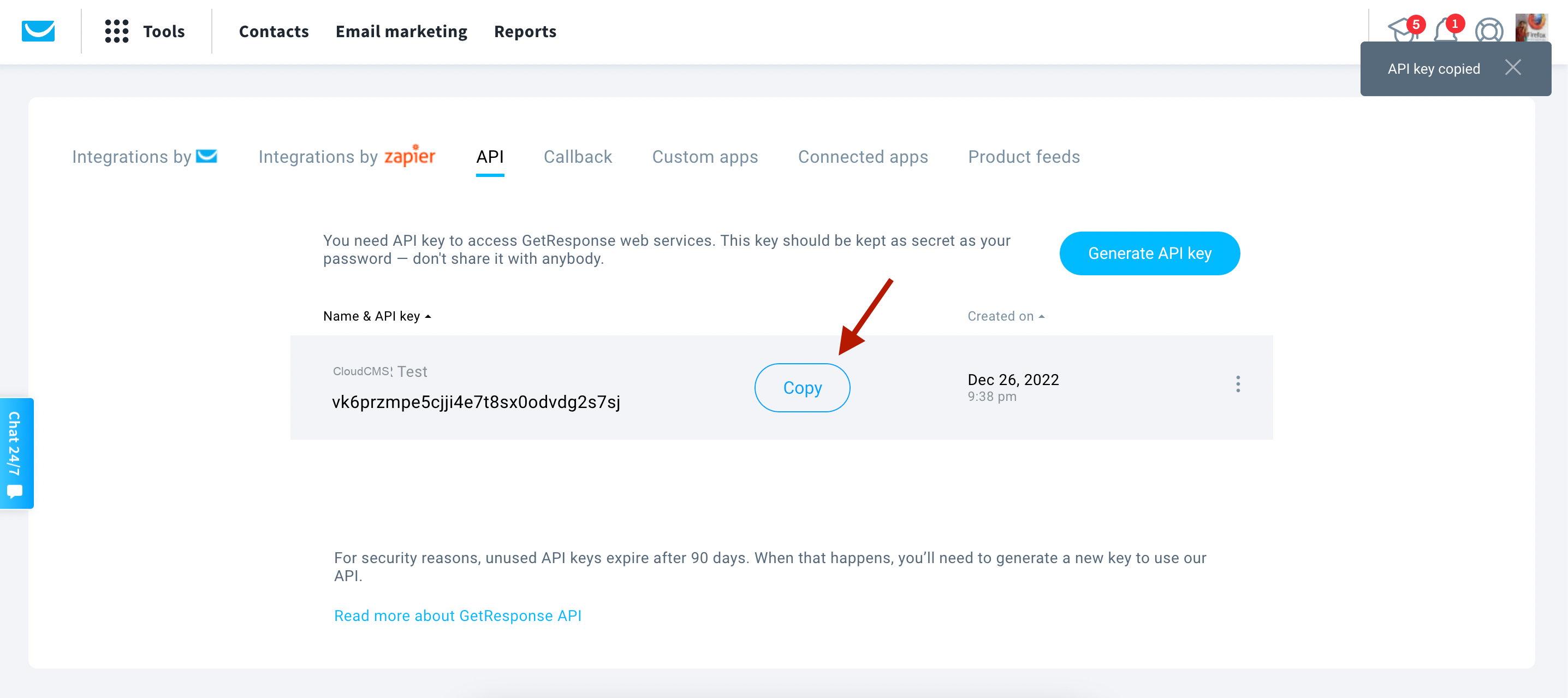
Step 7: Click Copy button to copy the API Key.
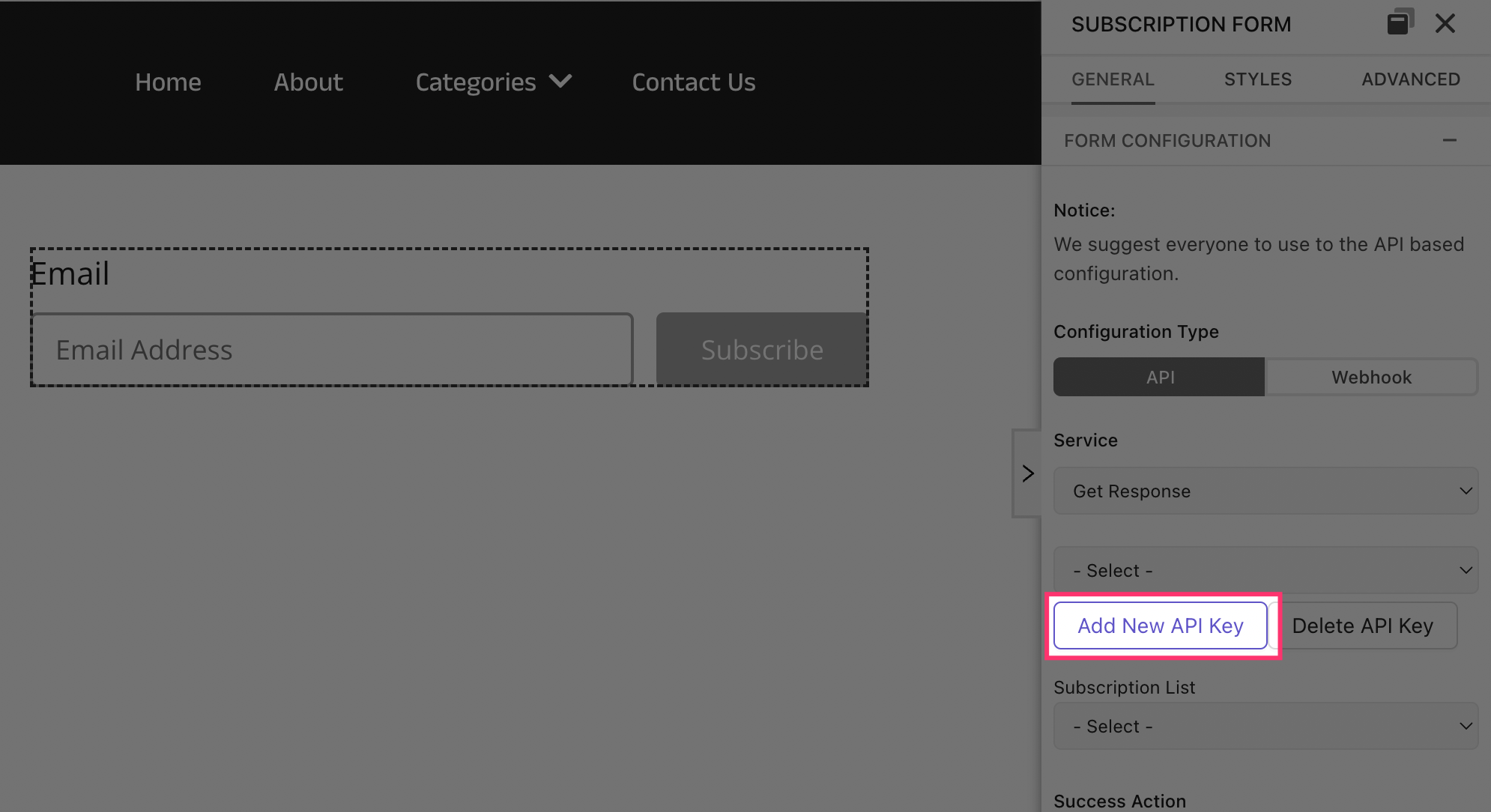
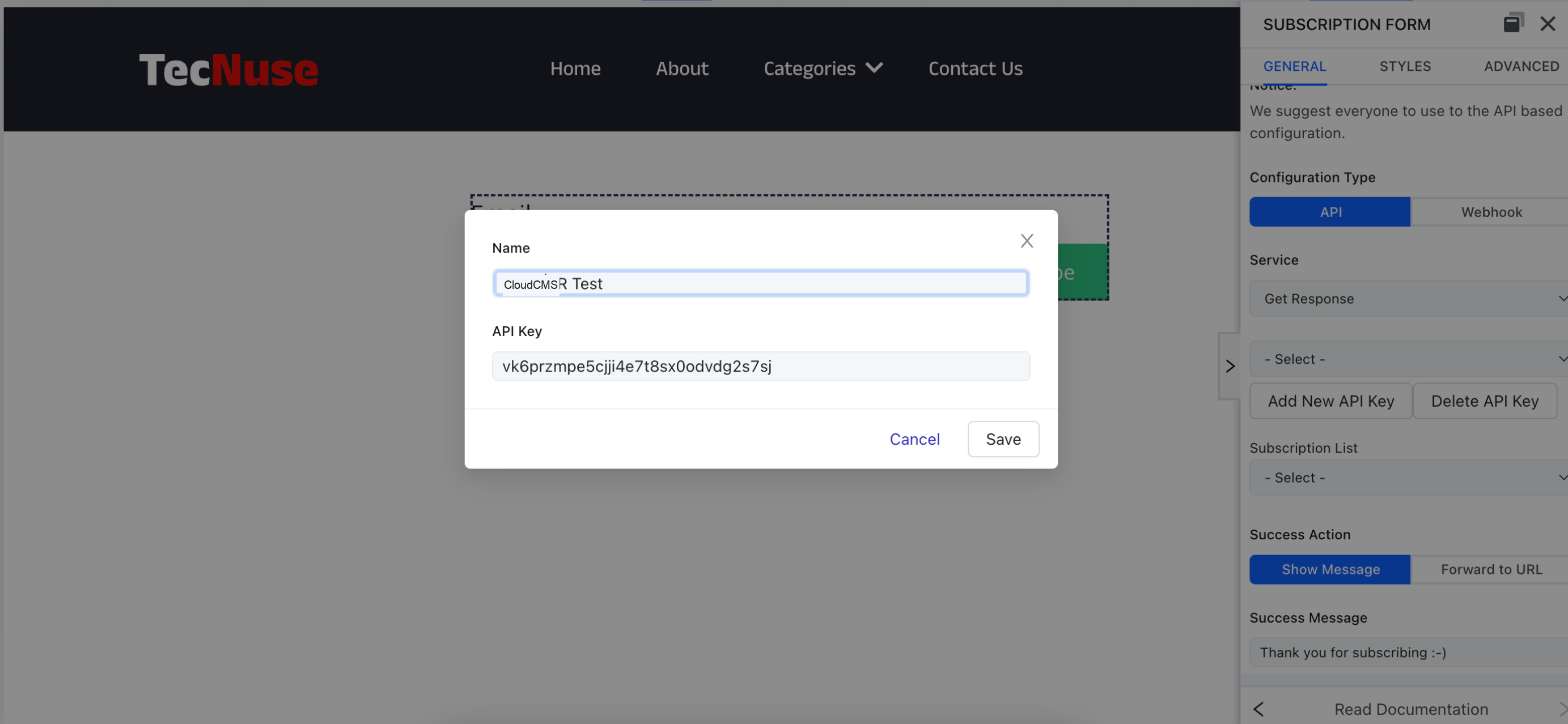
Step 8: Go to your website builder and click Add New API Key from the From Configuration.
Step 9: Give your key a name and paste the API key you copied in the previous step.
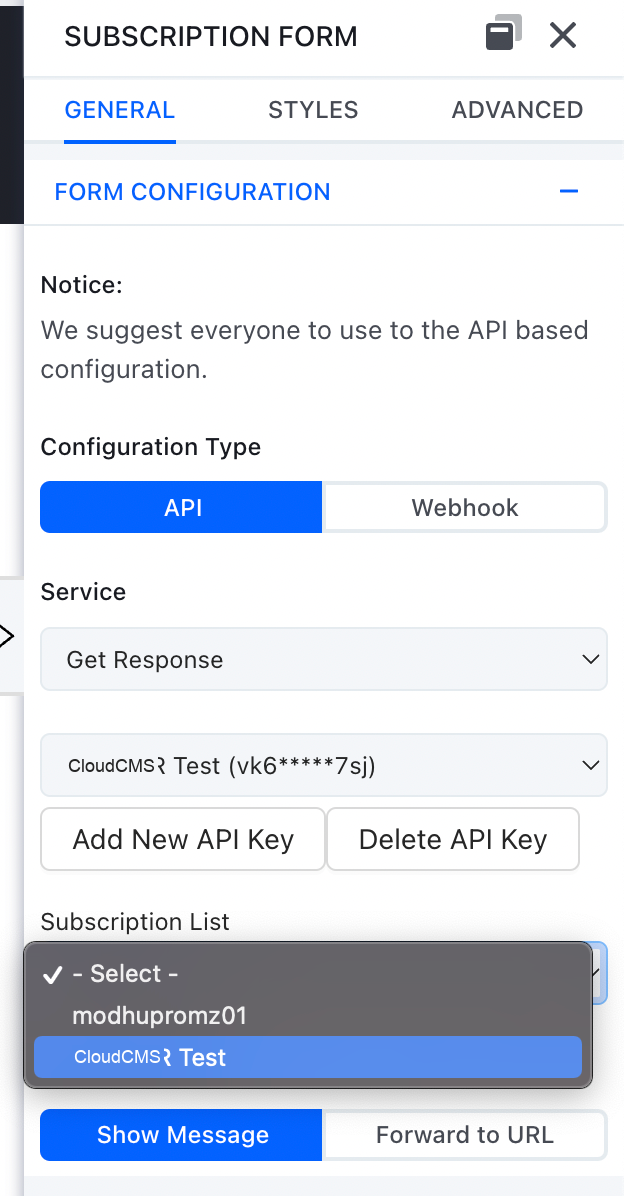
Step 10: Choose your GetResponse list from the Subscription List option.
Testing BigMailer Integration
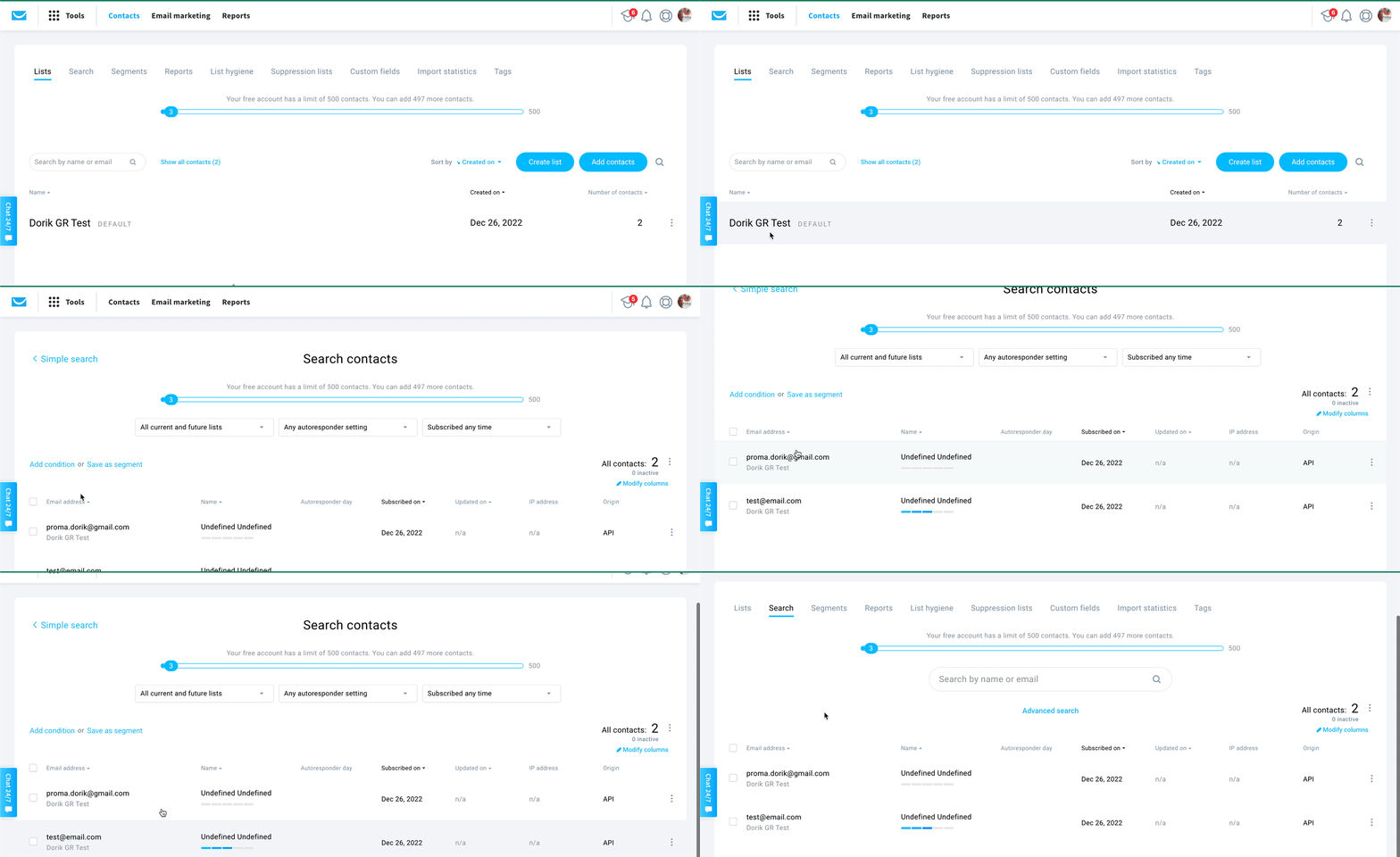
Step 1: To test this, publish your site, visit it externally, and input any email address on the Subscription Form.

Step 2: Go to the Lists and open the subscription list you created.
Related article
Ai nevoie de ajutor? Scrie-ne.