
Ajutor › Integrări Formular de Abonare
ConvertKit - Subscription Form
Getting Started
This article will cover integrating ConvertKit into a subscription form on your website. Follow all the instructions accordingly to integrate ConvertKit into your subscription form.
Table of Contents
Adding a Subscription Form
Refer to the Documentation below to learn how to add a Subscription Form element to your website ⬇️
📮 Subscription FormIntegrating ConvertKit
To integrate ConvertKit into your subscription form, follow the steps given below:
- After you add the Subscription Form, click on Edit Element
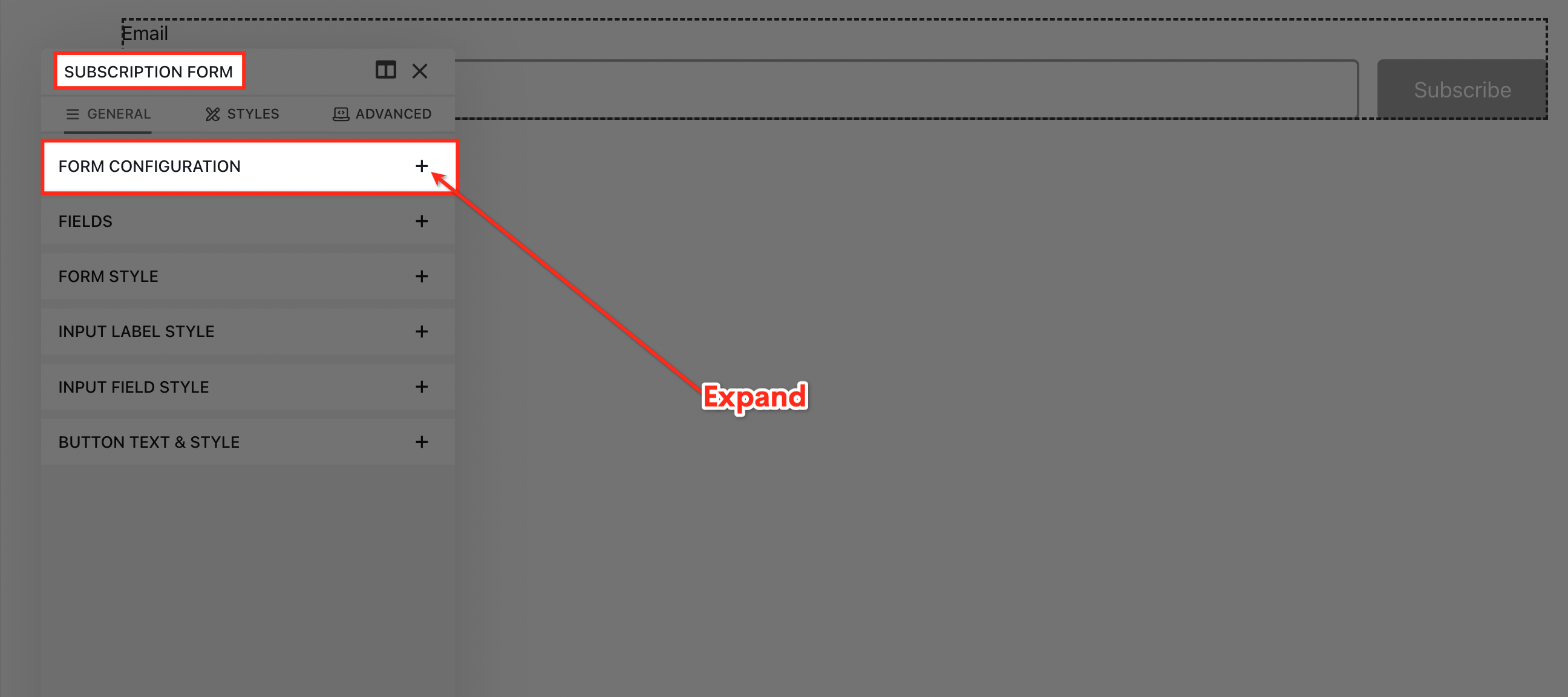
- Expand the Form Configuration option
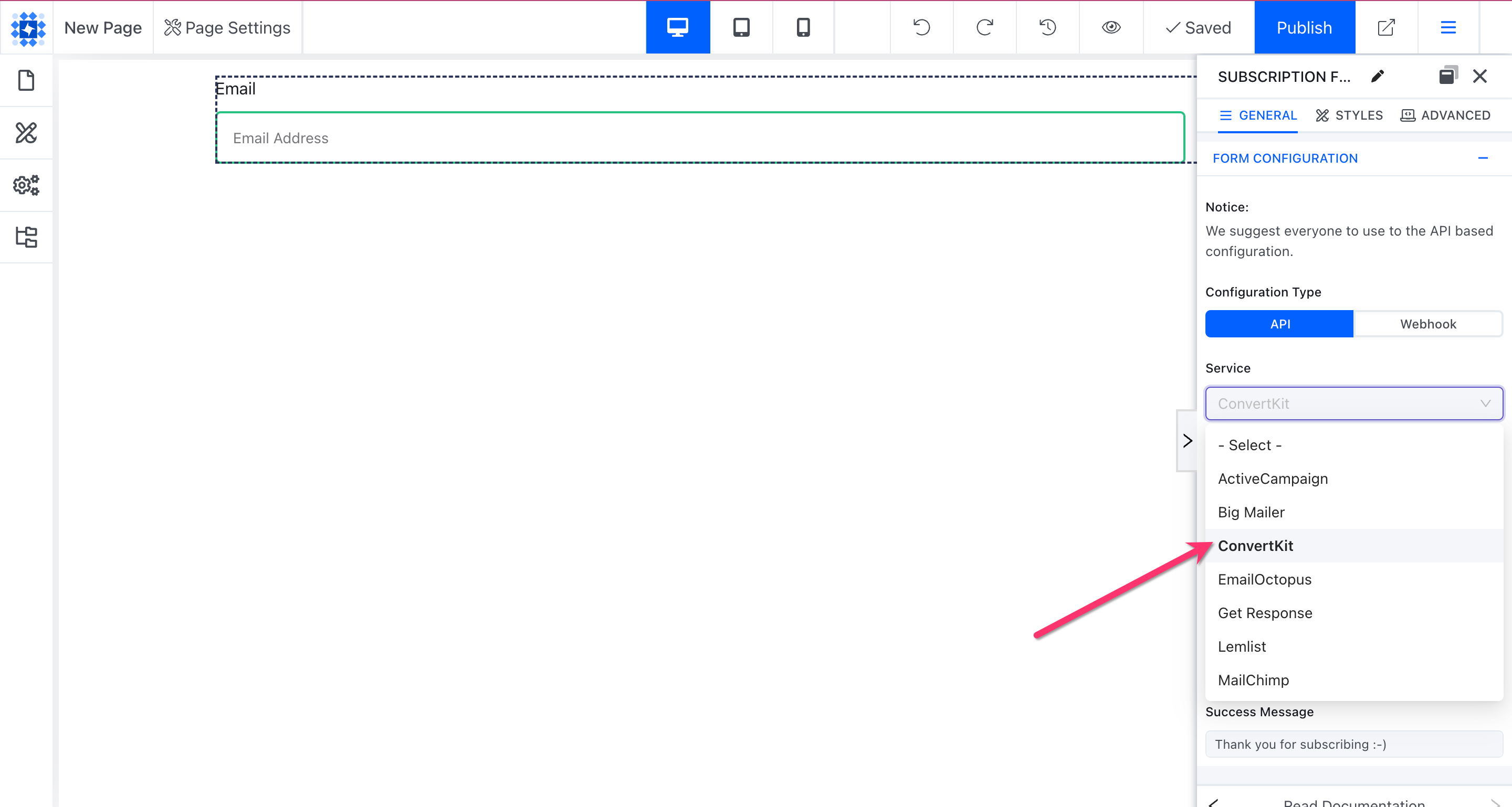
- Choose ConverKit from the Services option
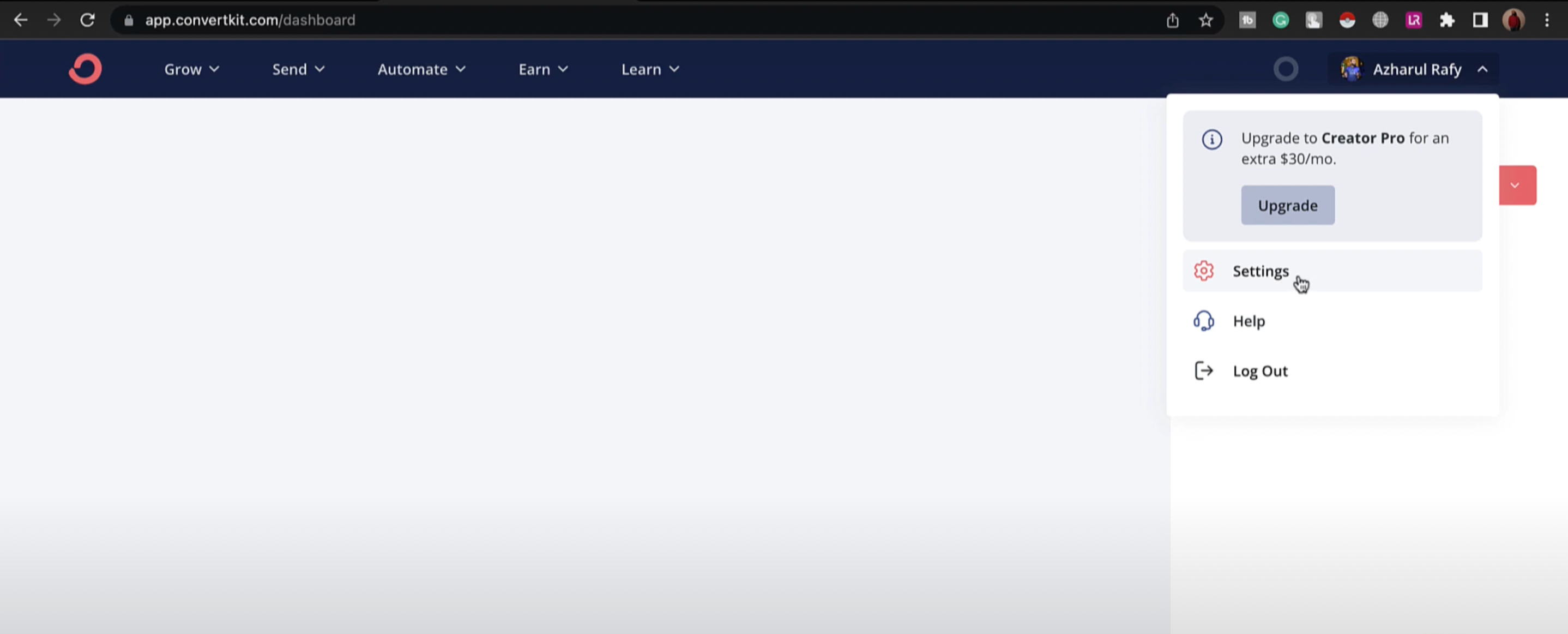
- Login to your ConvertKit account
- Go to Settings
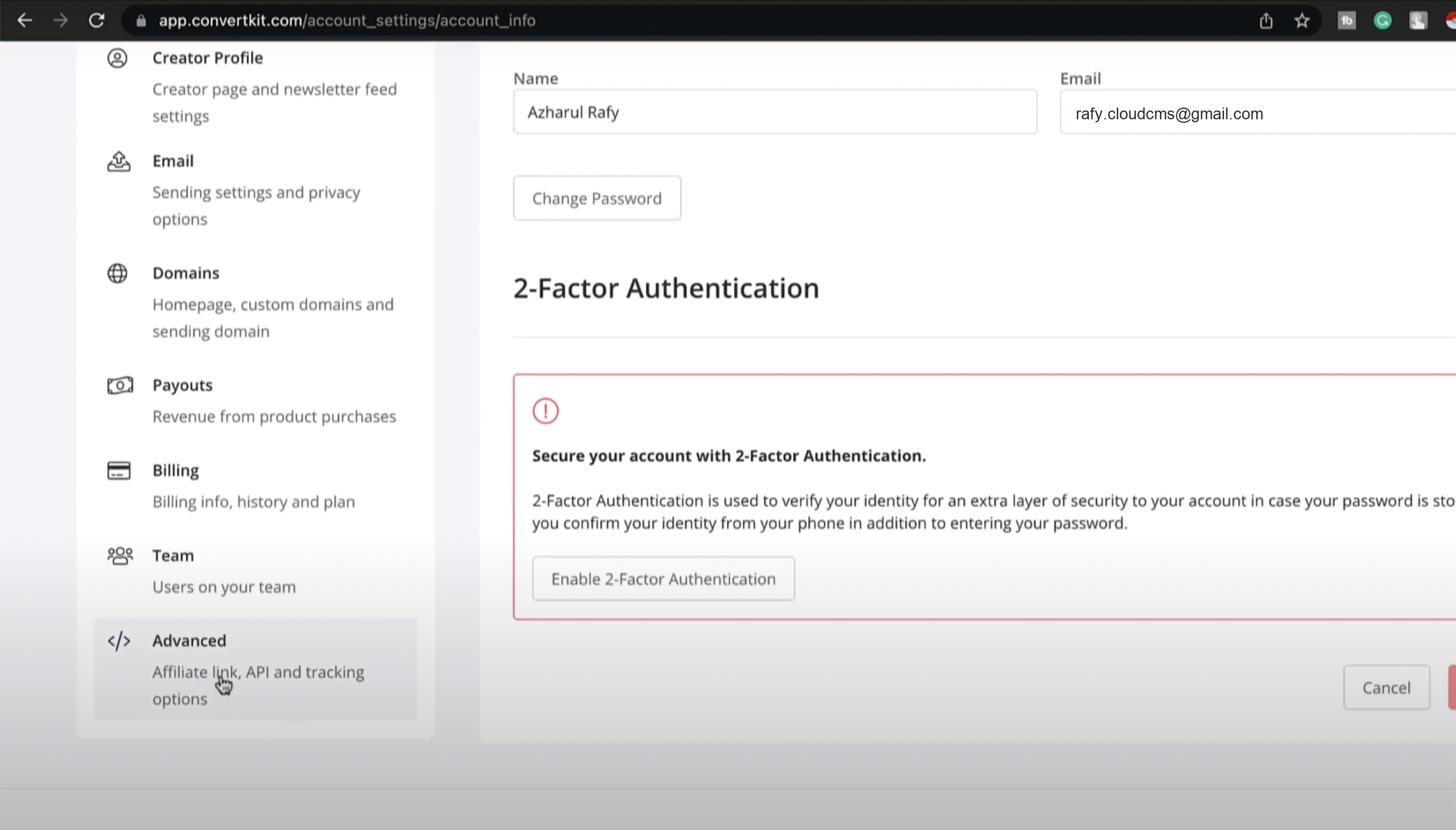
- Go to Advanced
- Copy the API key
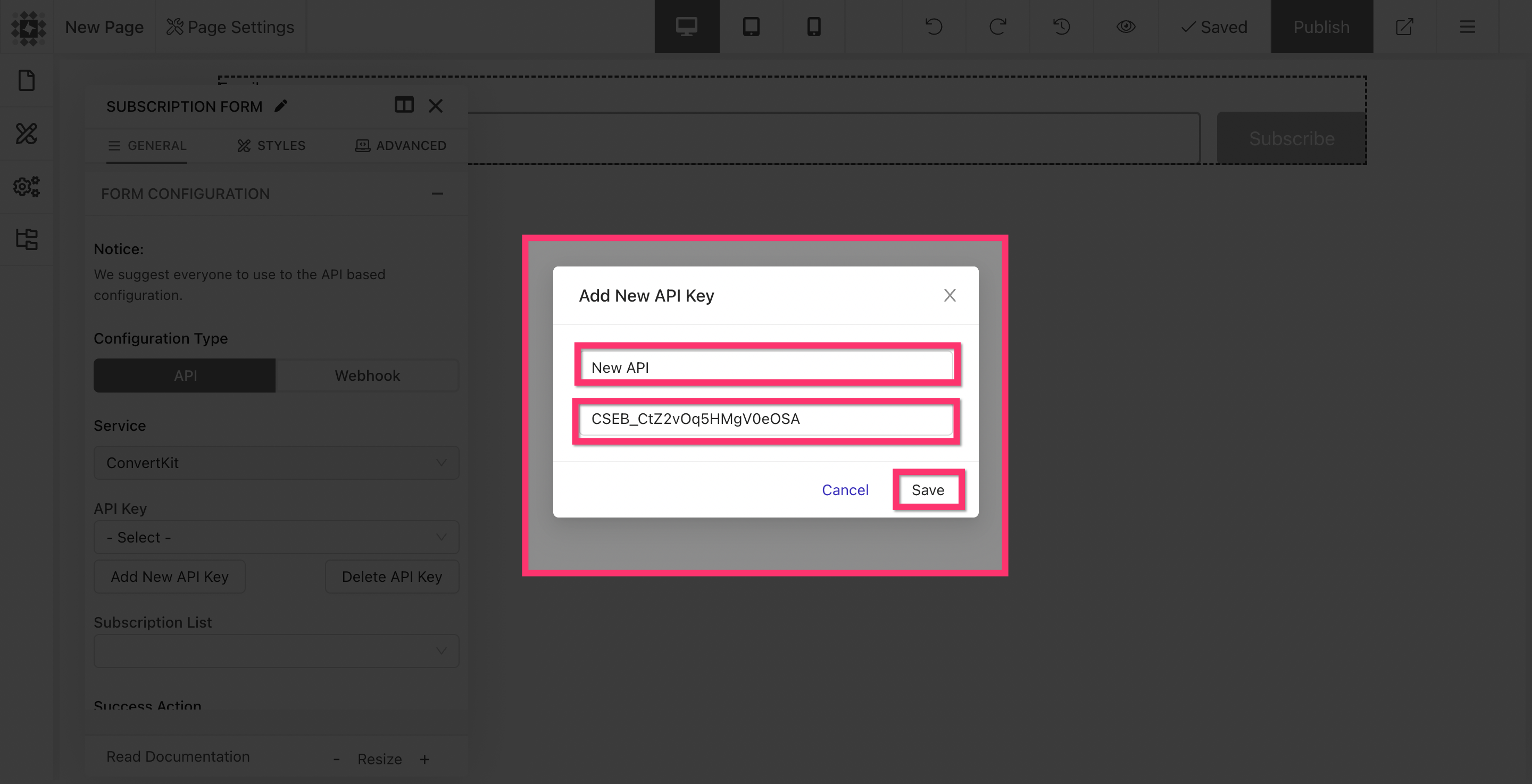
- Go to your website builder and click on Add New API Key on the Subscription Form element editor
- Paste your API key
- Select the Key from the options
- Done! ConvertKit has been integrated with your subscription form.
The Images below show the whole process being demonstrated visually ⬇️
- Expand the Form Configuration option from the Subscription Form editor
- Choose ConverKit from the Services option
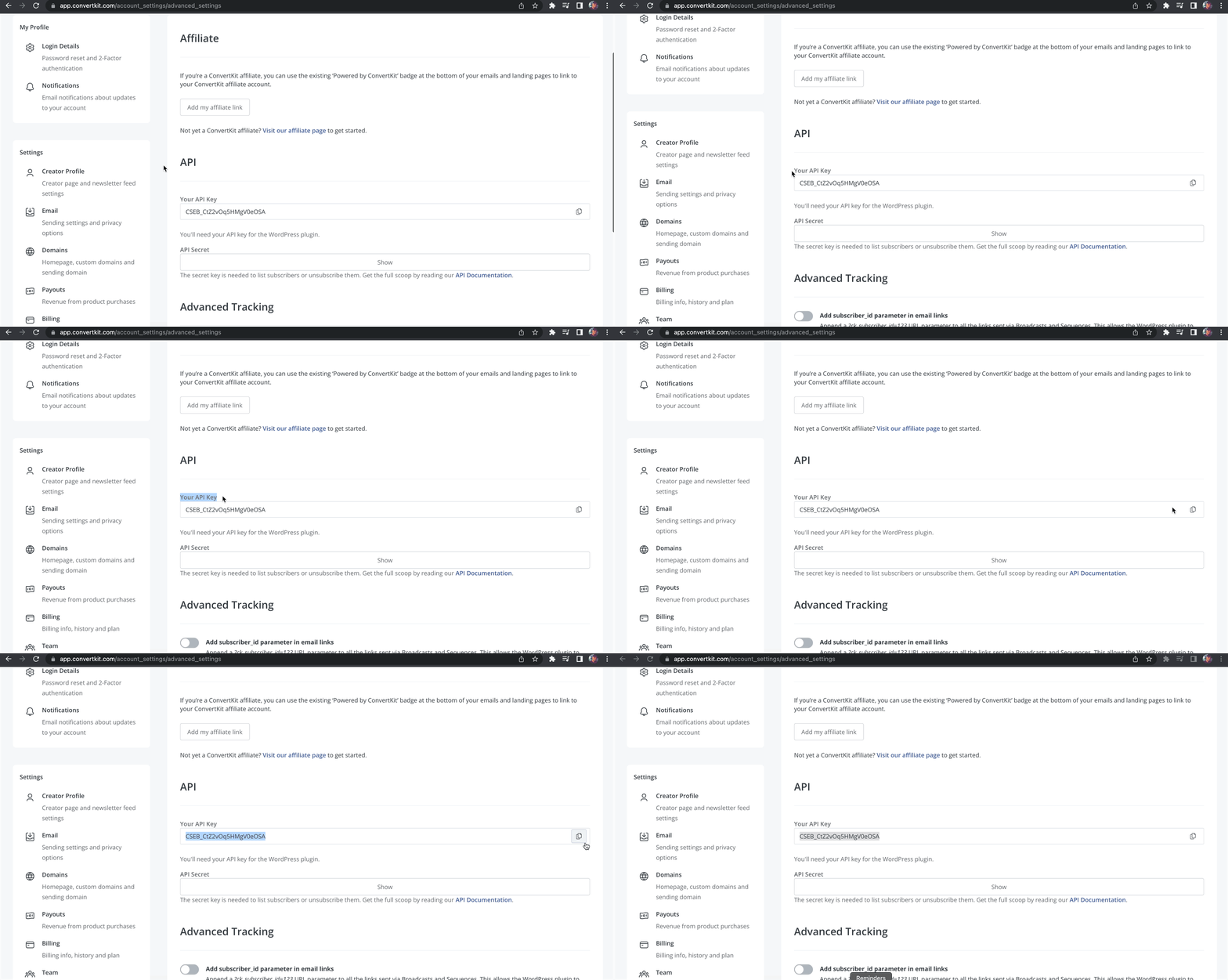
- Login to your ConvertKit account and go to Settings
- Go to Advanced
- Copy the API key
- Go to your website builder and click Add New API Key on the Subscription Form element editor. Give it a name and paste the API key you copied and then press Save.
- Select the Key from the option below Services
Testing ConvertKit
💡
If you want to get the last name of a subscriber, make sure you enable the 'Last Name' field on your builder and add a field with the name 'LAST NAME' in ConvertKit
Setting up ConvertKit
Follow the steps below to set up ConvertKit and start growing your subscribers from your website.
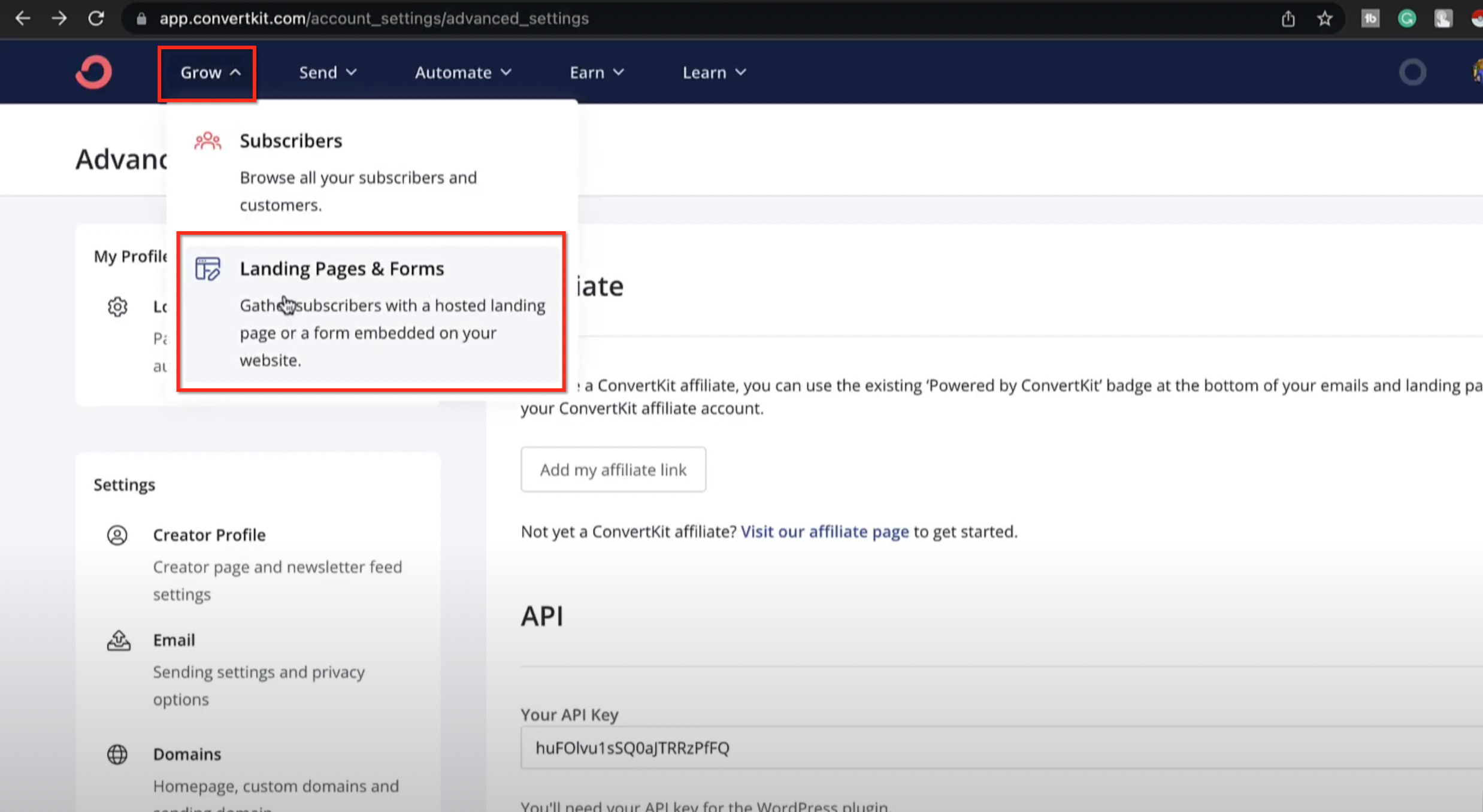
- Expand the Grow option from your account settings in ConvertKit. Select the Landing Pages and Forms option.
- On this page, click + Create New on the top-right side of the site.
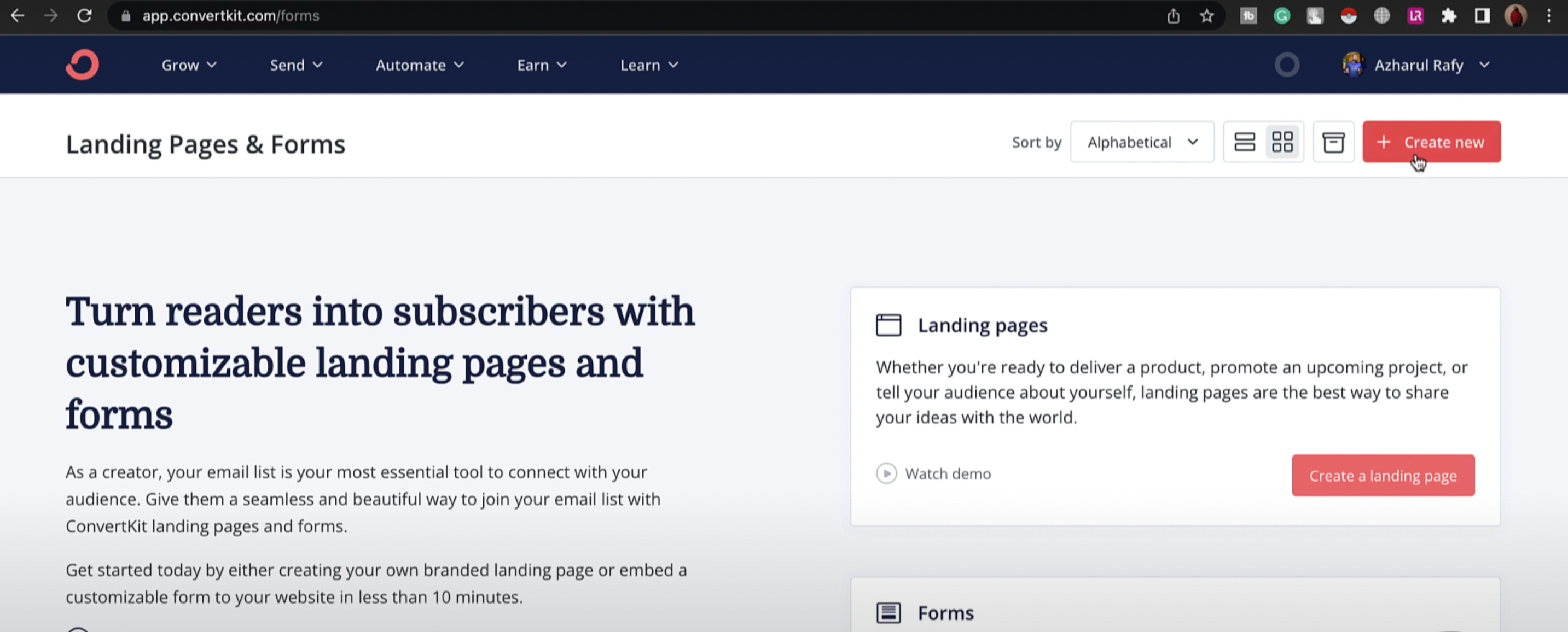
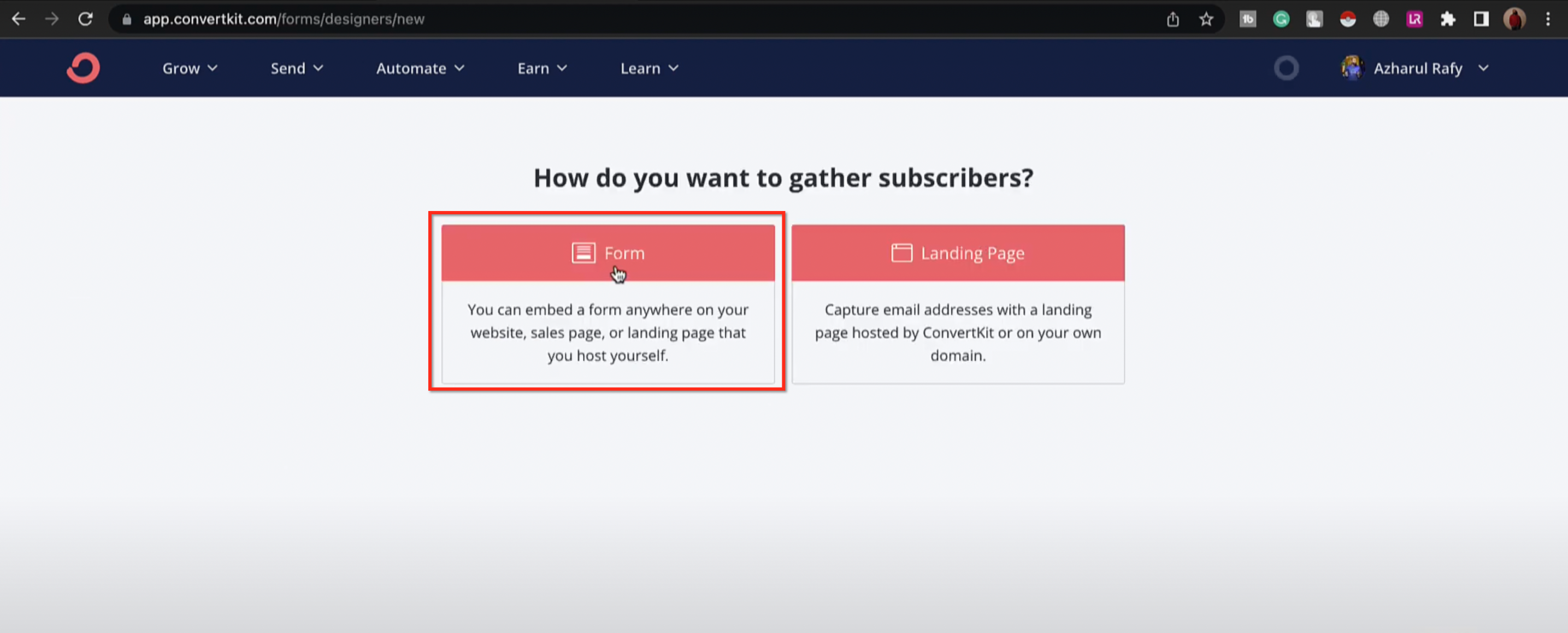
- Choose Form
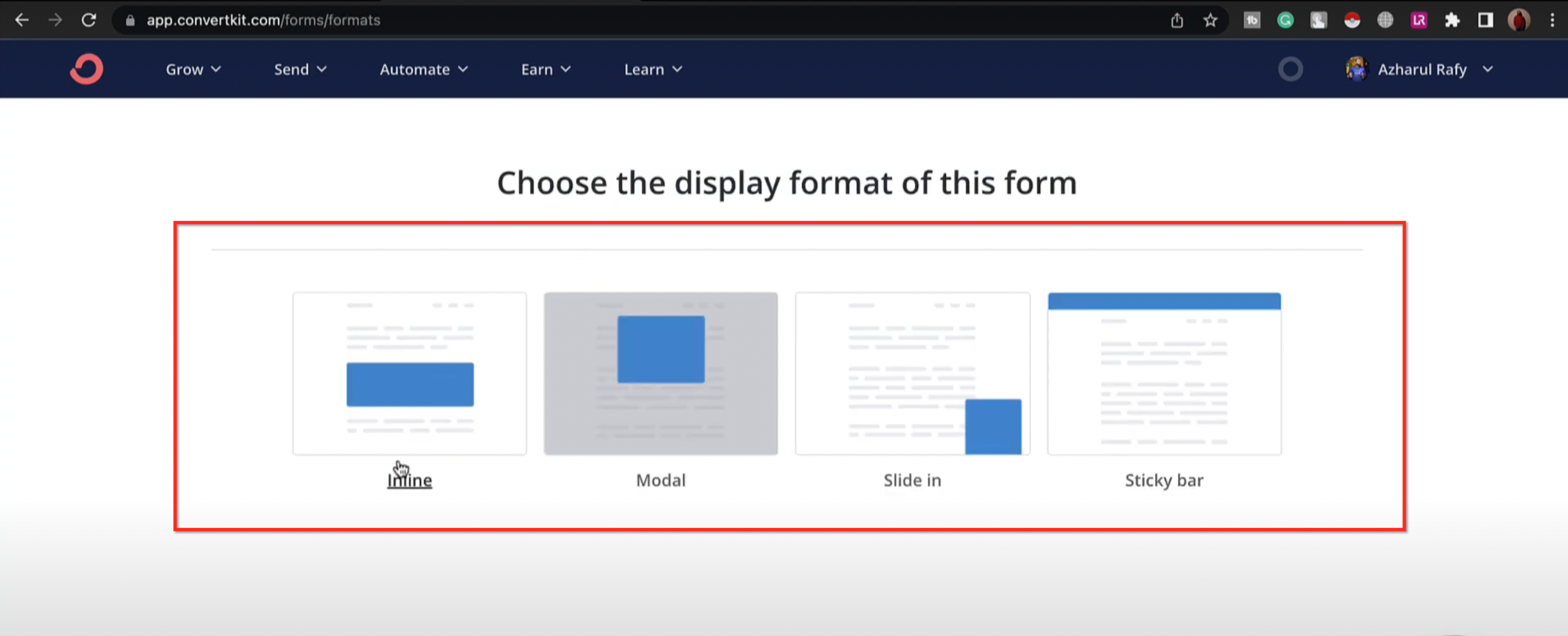
- Choose any display format
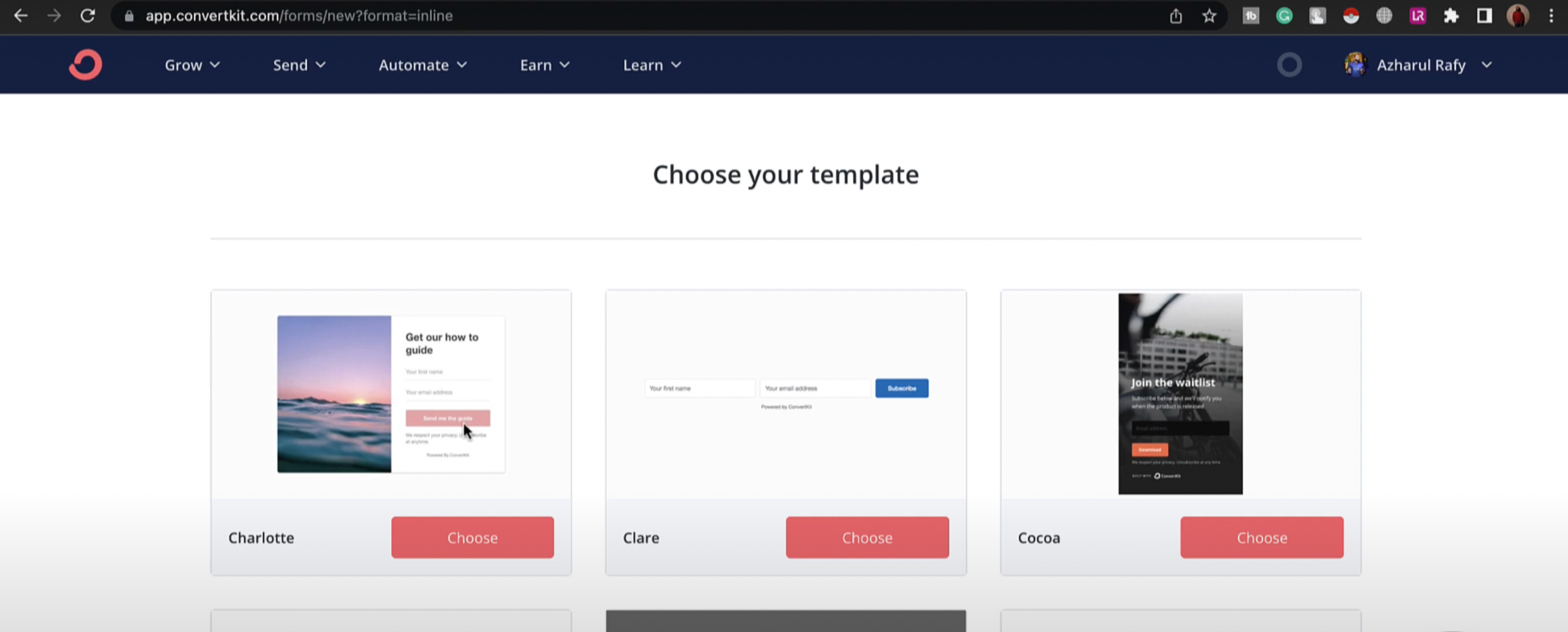
- Choose a theme
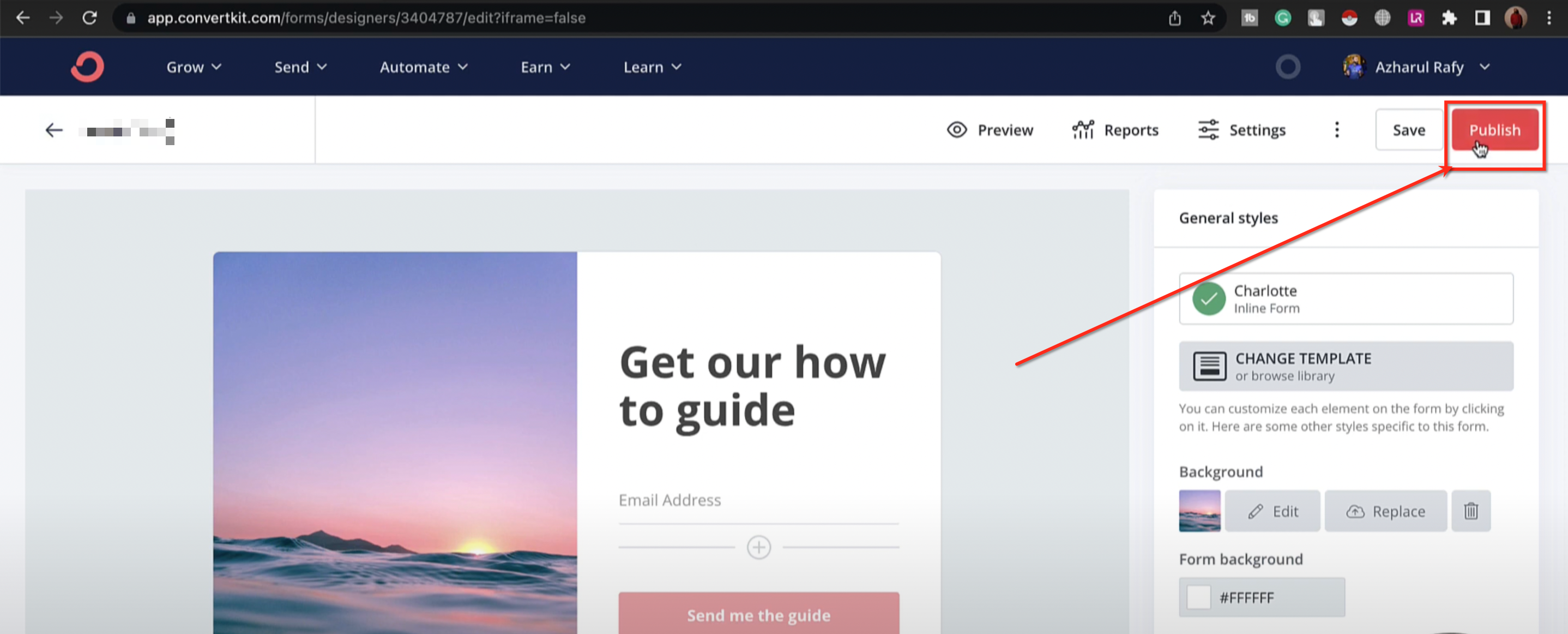
- Select Publish
- From the Subscription list option, choose your list.
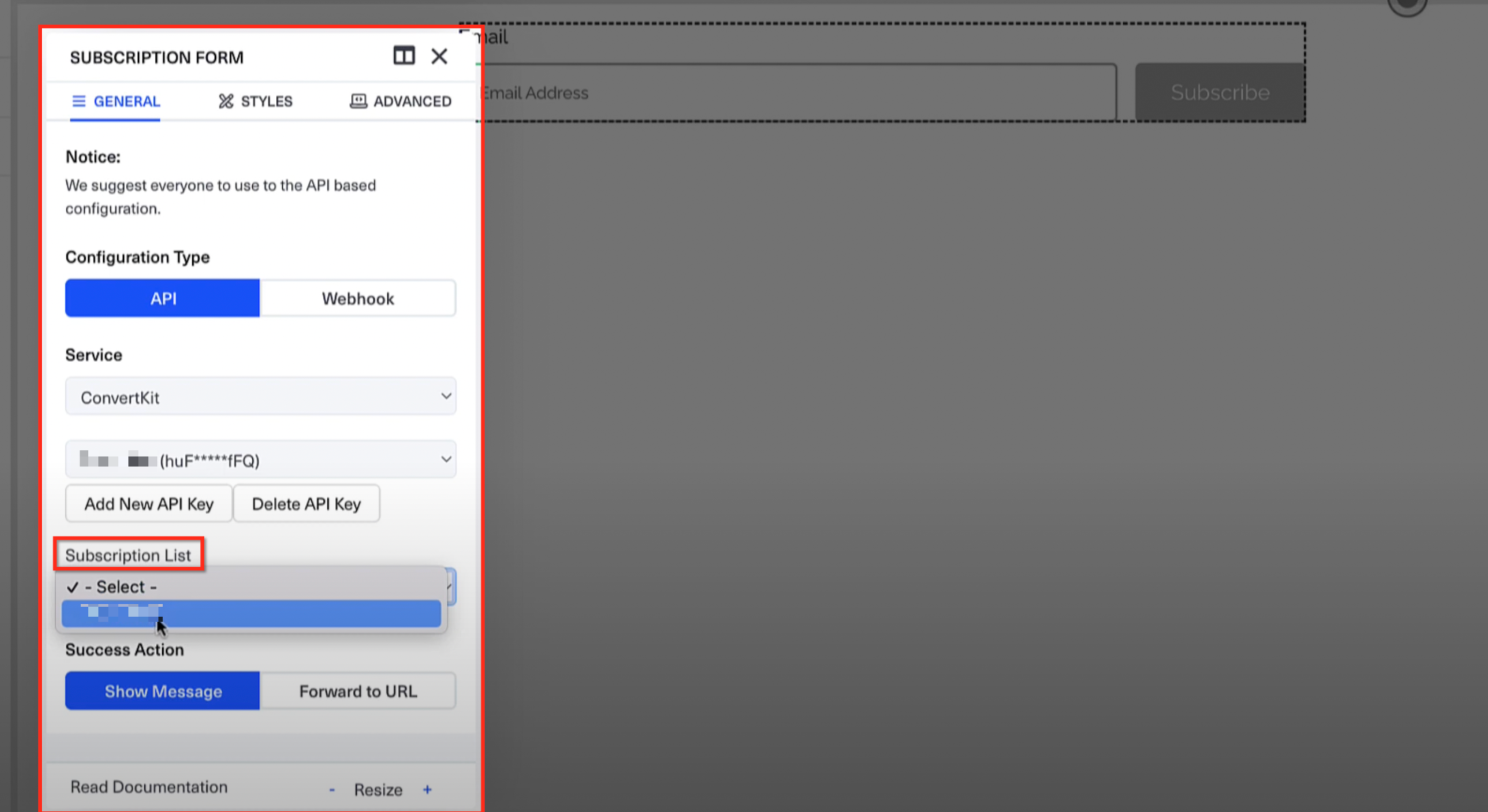
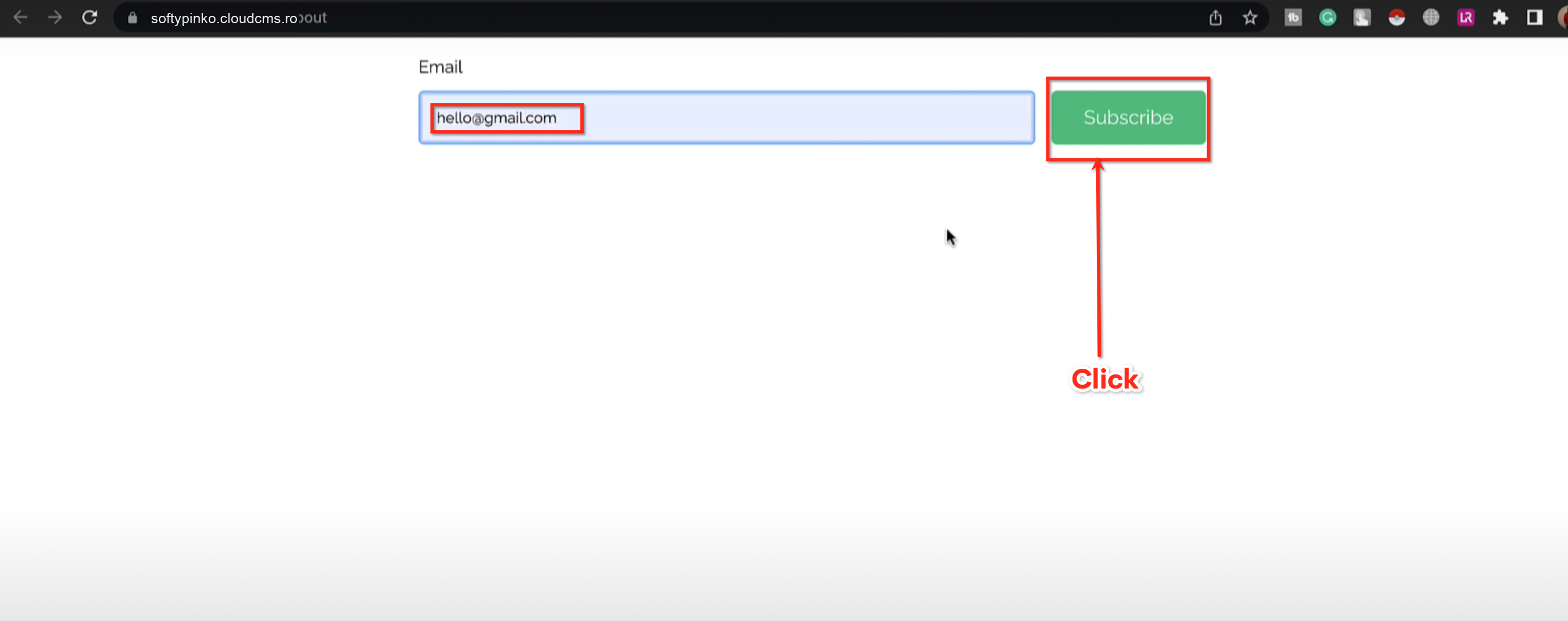
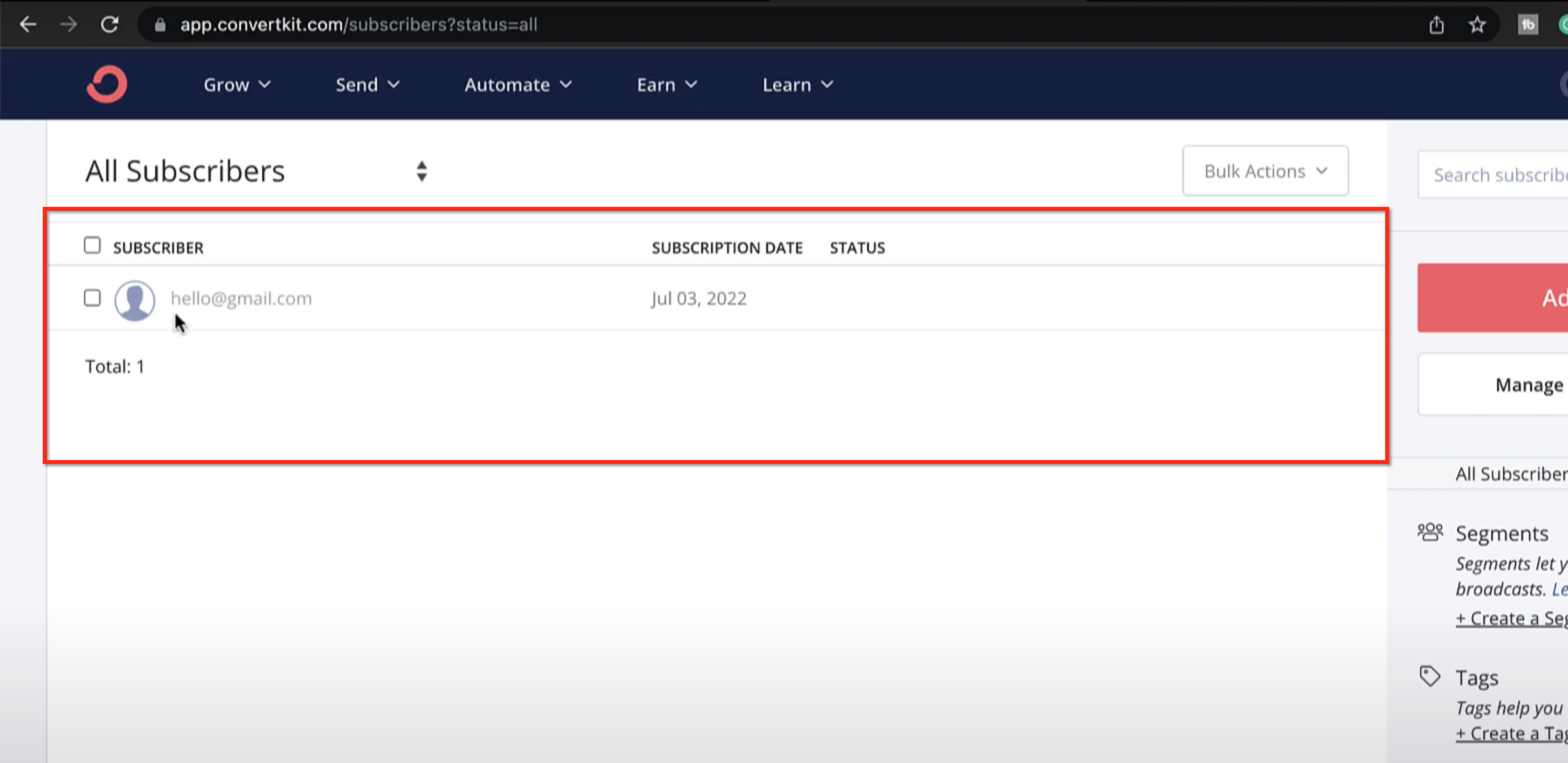
- To test this, publish your site and visit it externally and input any email address on the Subscription Form.
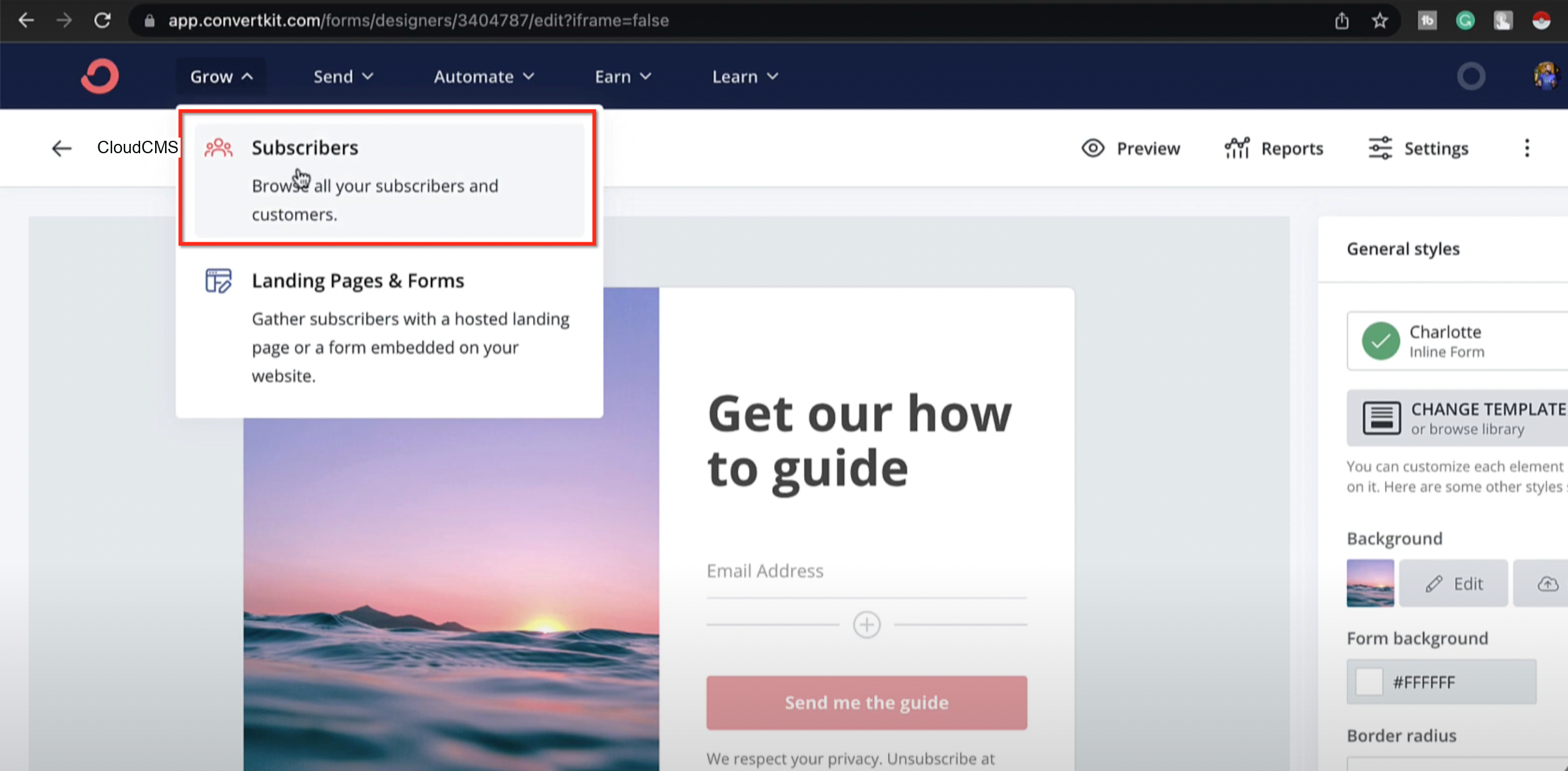
- To check if it worked, go to ConvertKit and expand the Grow option again.
- Select “All Subscribers”
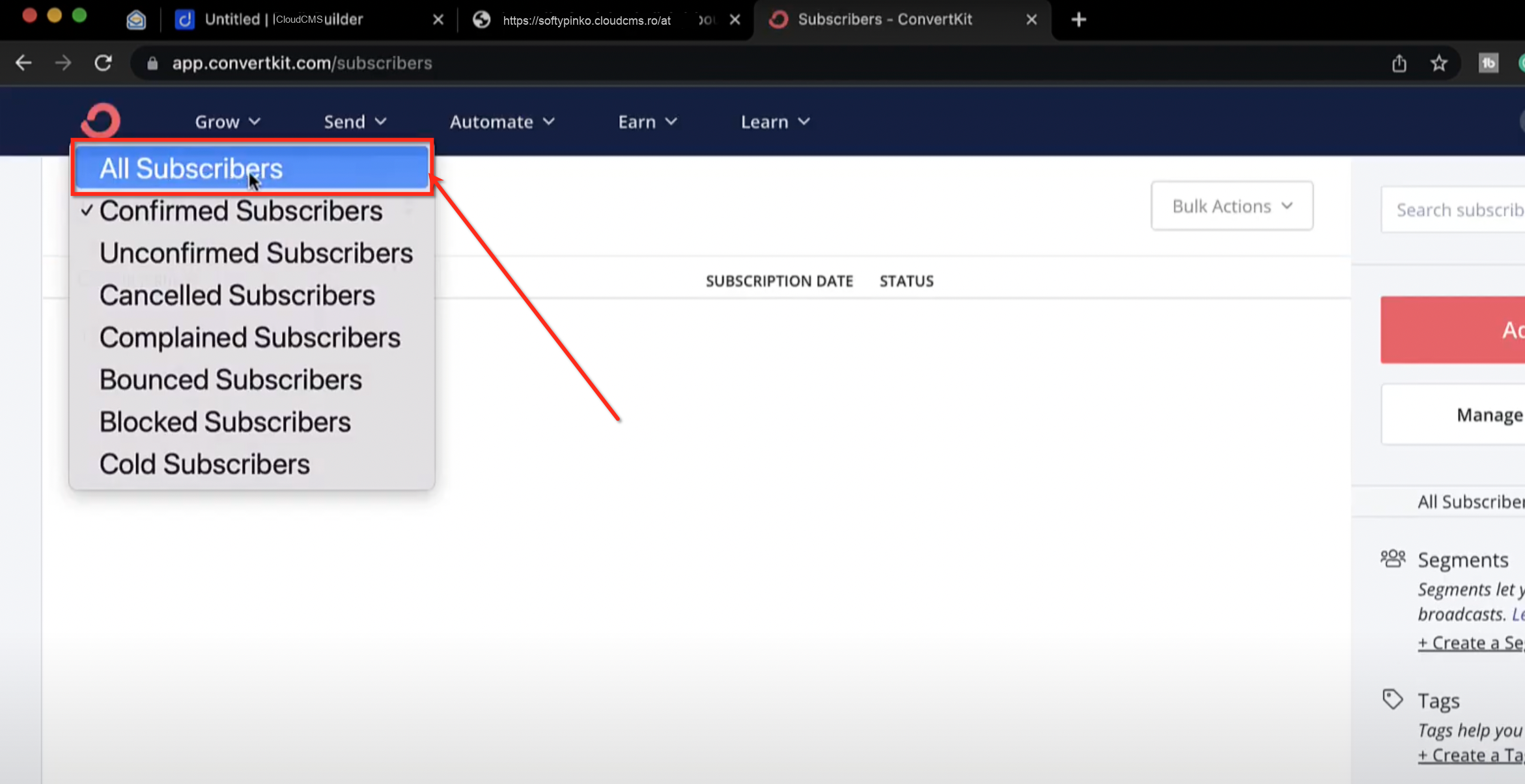
- You will find the email you had input in step 8 added to your subscription list.
Related articles
Active Campaign - Subscription Form EmailOctopus - Subscription FormAi nevoie de ajutor? Scrie-ne.